

|

|
| CARVIEW |
1. A Good SEO Plugin
The first place I start is suggesting people install an SEO plugin – one that will let you control the way your titles appear, meta tags (keyword, descriptions, etc.) on a page/post basis. This gives you better control of what is being seen by search engines. My current favorite is the one made by Yoast: WordPress SEO. You can download this plugin for free on the WordPress repository. One thing I particularly like about this plugin is the "Google preview" it gives you to show you how your page would appear in a Google's search results.
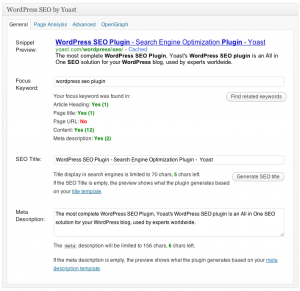
I'll add an additional note – there are more than just a few SEO plugins. Platinum SEO, All-in-one SEO, are just two I've worked with in the past. WordPress SEO is just my personal preference.
The next step after installing the plugin is actually using it. Yeah, that seems like silly advice, but just installing the plugin does not instantly give you SEO karma. I've installed the plugin for many clients, but they still need to go in and customize their title, keywords and descriptions. They'll ask me for updates on their site a few months later, and I'll go in and see NOTHING entered in these fields. You still have to do the work – this plugin just gives you the tools.
2. Research your topic (keywords)
One tool I really like for getting information about keywords is Google's AdWords Keyword Tool. There, you can enter in a search term and see how much competition the keyword has vs. how many searches are being done for that word. So the trick here is picking keywords/phrases that have low competition and high search numbers.
The next step after picking your keywords is actually using them. Yes, again. But this one is a bit more tricky. You want to use your keywords in your content in a logical way. Pepper it as much as possible with the keyword or phrase, but not to the extent that you sound stupid and obvious. It should read normal and make sense. Remember, you're not just writing for SEO, but so people will actually read and benefit from your content. Content is and always will be, king.
Take a look at this search. I was thinking about writing a post on my personal blog about my son's costume. He's going to be Ironman for Halloween – but the school doesn't allow the kids to wear masks. The costume just isn't the same without the mask – so I decided to paint his mask directly on him! LOL! So if I were to make a post about this fun project – and wanted people to actually see it – the first keyword I'd probably think of to use is "Ironman Mask Paint" – here's the results from a search like that:

There you'll see that any talk of an "ironman costume" will not do much good. It's got high competition, and that with only 49,000 searches (High competition for a good search number of 100,000 is reasonable – 49,000 seems low) But take a look at "Face Paint" – there's low competition and 673,000 searches (301,000 monthly locally). There's a topic to talk about! (although probably a good 100,000 of those were ME searching for Ironman face painting ideas! Another good one "Ironman games" – low competition, 246,000 searches. Doesn't really relate to my topic though… You get the idea.
3. Make sure your content can be found!
If you've taken your time setting up your site – you may have wanted to hide it from search engines initially while it was being developed. Now that you've launched, your traffic just isn't the same… what gives?! I've seen this problem come up sometimes. In the rush and panic at launch-time – did the "privacy settings" get turned to "I would like my site to be visible to everyone" or did you forget? Yeah, not turning that on can be a pain. Google will come around eventually and look at your site, but it takes time. (There used to be a flag right in WordPress that warned you when your blog was set to private. That was a GREAT reminder to turn it back to public when it was ready – but that's been gone now in the more recent version of WordPress. Another reason I like WordPress SEO – it adds it's own big red flag that tells you your blog is private. You can hide it if you want – but it's a great reminder!)
The other thing you can do to help your content to be found – create a sitemap.xml file and a robots.txt file. There are some plugins that will do both of these for you. This is the one I've used most often: Google XML Sitemaps although this one looks interesting too but I haven't used it yet: Better WordPress Google XML Sitemaps Make sure your robots.txt file has a pointer to your sitemap.xml. Then go and create a Google Webmaster account if you don't already have one – and submit the sitemap.xml url to them. This doesn't guarantee every page will get crawled, but it will encourage more to be.
4. Extra Help
At this point, if all else fails, and you're still really not sure what to do – I recommend a plugin based on reviews alone. I have not used it myself or seen it in action – but people I know who I trust do use it and absolutely love it: Scribe SEO. This plugin, from what I understand, will evaluate your post and make recommendations on ways to improve it's SEO quality. It has a bunch of tools in it to help you. It is not free – there is a monthly service fee that is based on the number of evaluations you do. At the very least, you could try using it a few times – and maybe it will teach you how to write better for SEO – and then further down the line, once you feel comfortable enough to do it on your own, you can cancel. (or not – if you really like the service)
So there you go – that's my $.02 for ya!
And just for good measure – here's my son in his costume just because I know you're curious how that turned out!
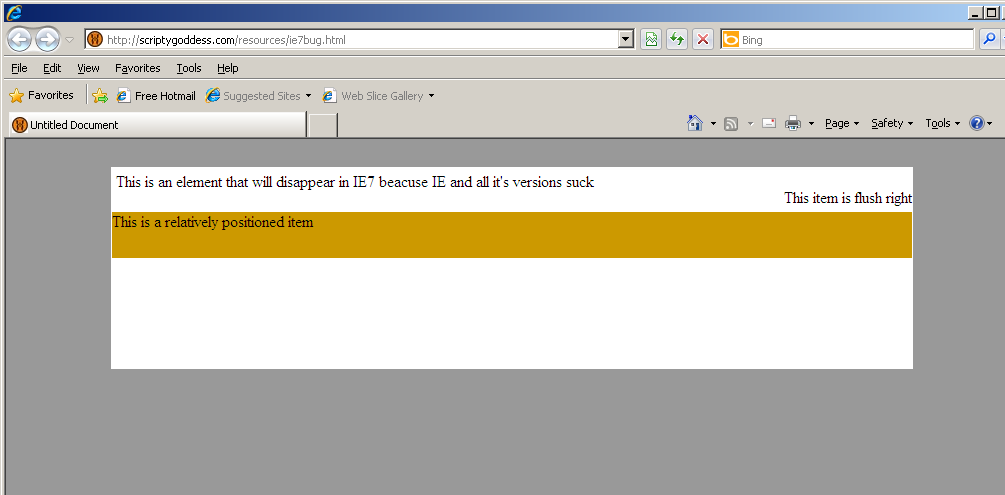
]]>I recently ran into the most bizarre bug. It takes a 'perfect storm' to create – one that I hadn't created before in hundreds (thousands?) of HTML files I've worked on. To recreate you need an absolute positioned element – then an element that's floated right, then another element that is positioned relative. A little odd I know, but in a layout I was working on – this was the scenario I ended up with. The result: The absolute positioned element was just GONE from the page.
Take a look at the real basic example here (If you have IE7, that's where you'll see the problem.) Here's what it's supposed to look like:
Here's what IE7 shows
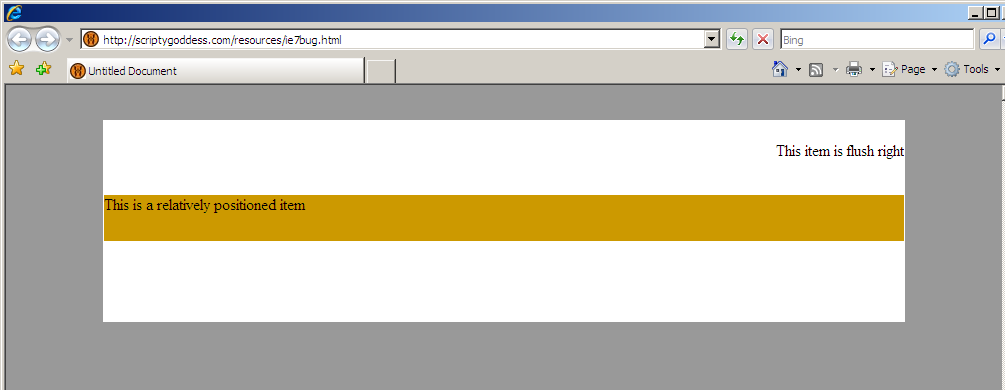
Notice the missing text at the top? In my layout that was a company's logo. Lovely.
The fix? Equally as stupid. A static DIV after the absolute positioned element and all is good. If you have IE7 you can see the fixed page here.
Many hairs were pulled in the discovery and fixing of this IE7 bug. Here's to hoping I can save you and your hair some pain. 
get_queried_object
Scenario: On a custom taxonomy page. (In this case the custom taxonomy is called "Product Category" – the specific category/term page we're on is "Accessories". To get specific details on the term – I used get_queried_object (which is a pretty useless codex page – there's barely any information there)
$term = $wp_query->get_queried_object();
This is what $term looks like:
stdClass Object

(

[term_id] => 5

[name] => Accessories

[slug] => accessories

[term_group] => 0

[term_taxonomy_id] => 5

[taxonomy] => product-category

[description] =>

[parent] => 0

[count] => 7

)
get_queried_object on a page looks something like this:
[ID] => 6

[post_author] => 1

[post_date] => 2010-03-29 05:38:46

[post_date_gmt] => 2010-03-29 05:38:46

[post_content] => This is my page content. Woo hoo! Hi.

[post_title] => My Totally Awesome Page

[post_excerpt] =>

[post_status] => publish

[comment_status] => open

[ping_status] => open

[post_password] =>

[post_name] => my-totally-awesome-page

[to_ping] =>

[pinged] =>

[post_modified] => 2010-10-04 16:43:41

[post_modified_gmt] => 2010-10-04 22:43:41

[post_content_filtered] =>

[post_parent] => 0

[guid] => https://www.mydomain.com/?page_id=6

[menu_order] => 3

[post_type] => page

[post_mime_type] =>

[comment_count] => 1

[ancestors] => Array

(

)

[filter] => page
On a category archive page – this is what the object looks like:
[term_id] => 3

[name] => Press Releases

[slug] => press-releases

[term_group] => 0

[term_taxonomy_id] => 3

[taxonomy] => category

[description] =>

[parent] => 0

[count] => 21

[cat_ID] => 3

[category_count] => 21

[category_description] =>

[cat_name] => Press Releases

[category_nicename] => press-releases

[category_parent] => 0
get_categories
Scenario: We want to get a list of terms in a custom taxonomy. Here are our $args:
'parent' => (A PRENT CAT ID),

'hide_empty' => 0,

'taxonomy' => 'location'
Then we pull in the list via get_categories
$mycats = get_categories($args)
This is one of the objects in $mycats (Can get one via a for each loop…)
[term_id] => 1393

[name] => Central Florida

[slug] => central-florida

[term_group] => 0

[term_taxonomy_id] => 1401

[taxonomy] => location

[description] =>

[parent] => 27

[count] => 3

[cat_ID] => 1393

[category_count] => 3

[category_description] =>

[cat_name] => Central Florida

[category_nicename] => central-florida

[category_parent] => 27
get_term_by
Scenario: get information on a specific term using get_term_by
The example below was done using get_term_by('id'… etc. Here is what the object looks like that I got back:
[term_id] => 24

[name] => Northern California

[slug] => northern-california

[term_group] => 0

[term_taxonomy_id] => 24

[taxonomy] => location

[description] =>

[parent] => 23

[count] => 24
I'll continue to add to this post over time. I've had it sitting in draft forever – but figured it was time to hit the publish button already. I think it's interesting to note that in the above objects – we're looking at a particular term in a taxonomy – but depending on how we obtained it – will also depend on what elements are in that object. ie. the presence of "cat_ID" in one "category_count" (not sure how this is different than "count", also not really sure what "term_taxonomy_id" is but I notice that it doesn't always equal term_id – so these two are not one and the same…
get_children
I use get_children very often to get all attached images to a post. When I do, the code usually looks like this:
$images = get_children(array(

'post_type' => 'attachment',

'post_status' => null,

'post_parent' => $post->ID,

'post_mime_type' => 'image',

'order' => 'ASC',

'orderby' => 'menu_order ID'));
$images will have multiple objects in it (if there are multiple images attached) here's an example of one of them:
[ID] => 1171

[post_author] => 2

[post_date] => 2011-10-02 21:11:39

[post_date_gmt] => 2011-10-03 03:11:39

[post_content] => (FYI - this is the image description)

[post_title] => IMG_2168.jpg

[post_excerpt] => (FYI - This is the image caption)

[post_status] => inherit

[comment_status] => open

[ping_status] => open

[post_password] =>

[post_name] => img_2168-jpg

[to_ping] =>

[pinged] =>

[post_modified] => 2011-10-02 21:11:39

[post_modified_gmt] => 2011-10-03 03:11:39

[post_content_filtered] =>

[post_parent] => 1173

[guid] => https://www.domain.com/wp-content/uploads/2011/10/IMG_2168.jpg

[menu_order] => 0

[post_type] => attachment

[post_mime_type] => image/jpeg

[comment_count] => 0

[filter] => raw
<div id="myvideo"></div>

<script type="text/javascript" src="https://ajax.googleapis.com/ajax/libs/swfobject/2.2/swfobject.js"></script>

<script type="text/javascript">

function vimeo_player_loaded() {

moogaloop3 = document.getElementById('myvideo');

moogaloop3.api_setVolume(0);

}

var flashvars = {

'clip_id': '29950141',

'server': 'vimeo.com',

'show_title': 0,

'show_byline': 0,

'show_portrait': 0,

'fullscreen': 0,

'autoplay': 1,

'js_api': 1,

'js_onload': 'vimeo_player_loaded'

}

var parObj = {

'swliveconnect':true,

'fullscreen': 1,

'allowscriptaccess': 'always',

'allowfullscreen':true

};

var attObj = {}

attObj.id="myvideo";

swfobject.embedSWF("https://www.vimeo.com/moogaloop.swf", "myvideo", "343", "193", "9.0.28", '',flashvars,parObj, attObj );

</script>
I actually just dropped this block right into a text widget in WordPress and it worked just fine…
The "29950141" is the video id (you can extract that from the URL you'd normally use to embed your vimeo video with)
The "343" and "193" are the width and height of the video we're displaying.
]]>
This is how you do the IMAGE HTML:
<img src="PATH-TO-IMAGE-FILE-HERE" />
(so let's say your image is here: https://www.flickr.com/photos/cairnrhana/4706506245/
to put that image into HTML – you'd do this:
<img src="https://www.flickr.com/photos/cairnrhana/4706506245/" />
To do a LINK – you need to wrap something with an anchor tag…
<a href="LINK-TO-SOMEWHERE">STUFF HERE</a>
So let's say you wanted to link some text to https://somewhereovertherainbow.com
<a href="https://somewhereovertherainbow.com/">TEXT HERE</a>
To link the IMAGE to that URL you'd take your "text here" out and put in the HTML for your image:
<a href="https://somewhereovertherainbow.com/"><img src="https://www.flickr.com/photos/cairnrhana/4706506245/" /></a>
To do an EMAIL link – instead of a URL you add "mailto:" in the anchor tag's href – then follow that up with the email address you want to link to:
<a href="mailto:dorothy@overtherainbow.com"><img src="https://www.flickr.com/photos/cairnrhana/4706506245/" /></a>
My original plan was to use this plugin: Cache Images – to import the pictures. The reason being that I needed the images attached to their various posts for the template – which is what that plugin does in addition to loading all externally referenced images onto your own server. But the way Typepad is storing the images now, the plugin doesn't really work. The images are referenced without a file extension at the end – which is what that plugin specifically uses to search for images. So that is why I used HTTrack to pull down the images first.
After I had a folder of all the images for the site – I put that up on a DIFFERENT server. (I know, a little confusing but hang in there with me)
I then used the search regex plugin to change references to the images without an extension to the temporary location of those images on my other server – but this time WITH the .jpg extensions:
Search string (regex options turned on)
#src="https://www.MY-CLIENTS-TYPEPAD-DOMAIN.com/\.a/([^\s]+(?=))"#i
and replaced it with:
src="https://MYREMOTESERVER.COM/DIRECTORYNAME/$1.jpg"
Now with all the references using the appropriate .jpg extension and pointing to MY server, I was then able to go back and use the "Cache Images" plugin to pull down the images and attach them to their respective posts.
]]>

