


| CARVIEW |



Watch Video
Multi-Instance
Play the same game from different accounts or play multiple games at the same time.
-
Grow your kingdom
Create your own guild
-
Uninterrupted Play
Different users, different instances, one PC
-
Effortless Multitasking
Switch between multiple instances
-
Many Instances. Multiple Possibilities.
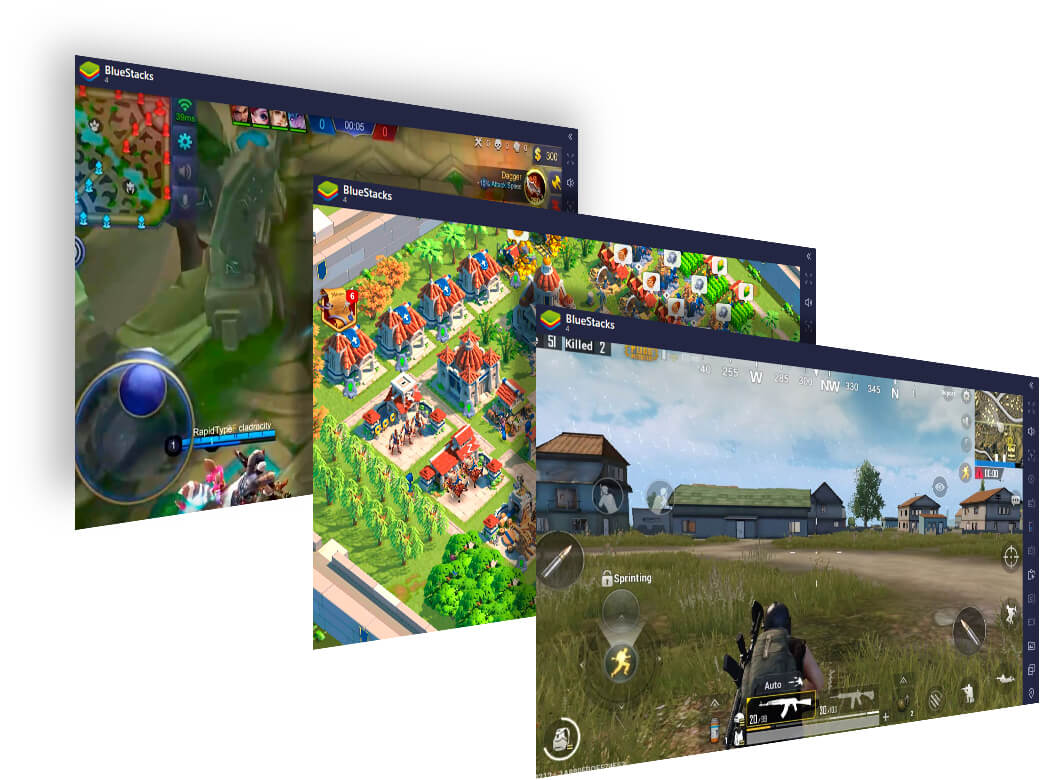
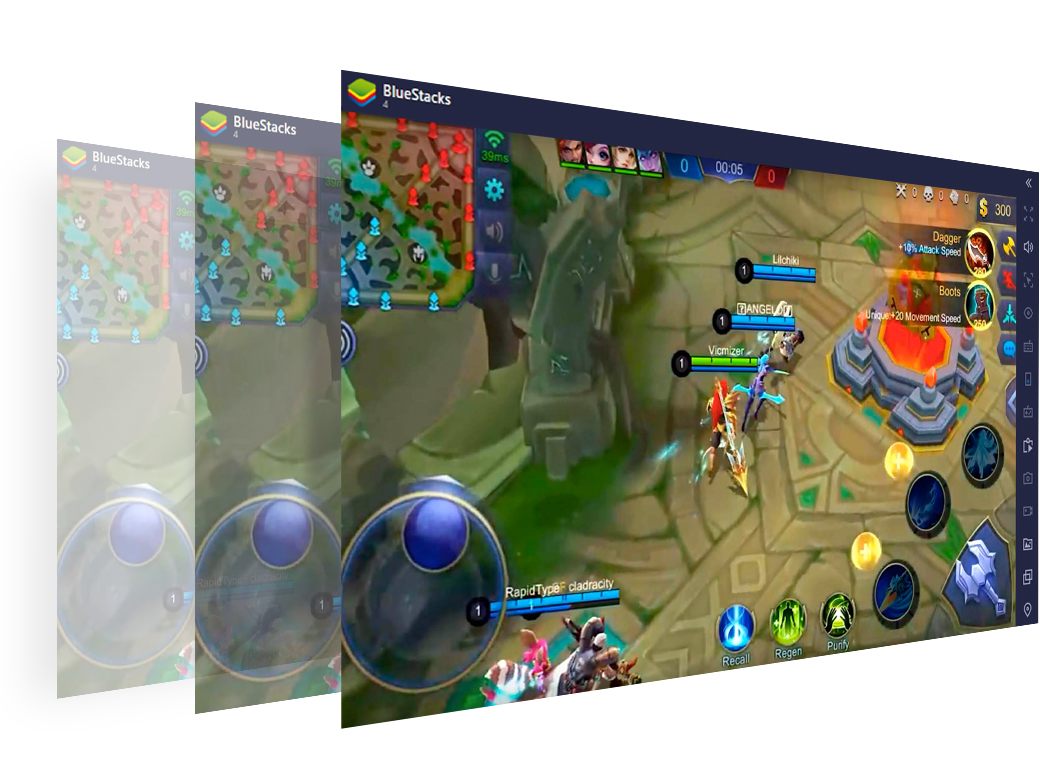
The Multi-Instance Manager makes it easy to play your favorite Strategy and Gacha games. Optimize your PC for the best performance even with multiple instances running in the background by using the ‘Eco Mode’ feature. Create, close, launch and remove instances in batches or arrange them in Grid or diagonal layout.
![Many Instances. Multiple Possibilities.]()
-
Play Multiple Games at Once
Farm in Lineage 2 Revolution. Reroll in Astral Chronicles. Gather loot in PUBG mobile. You have the freedom to play different games from different instances. No confusion or interference from other games.
![Play Multiple Games at Once]()
-
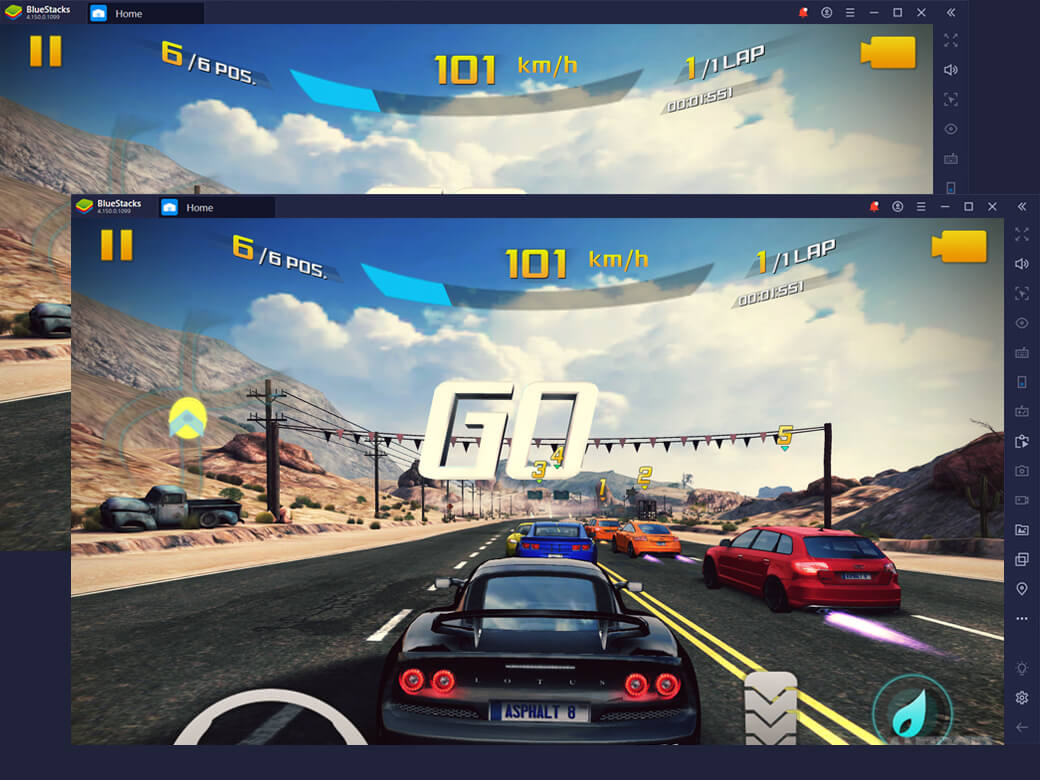
Play Multiple Instances of the Same Game
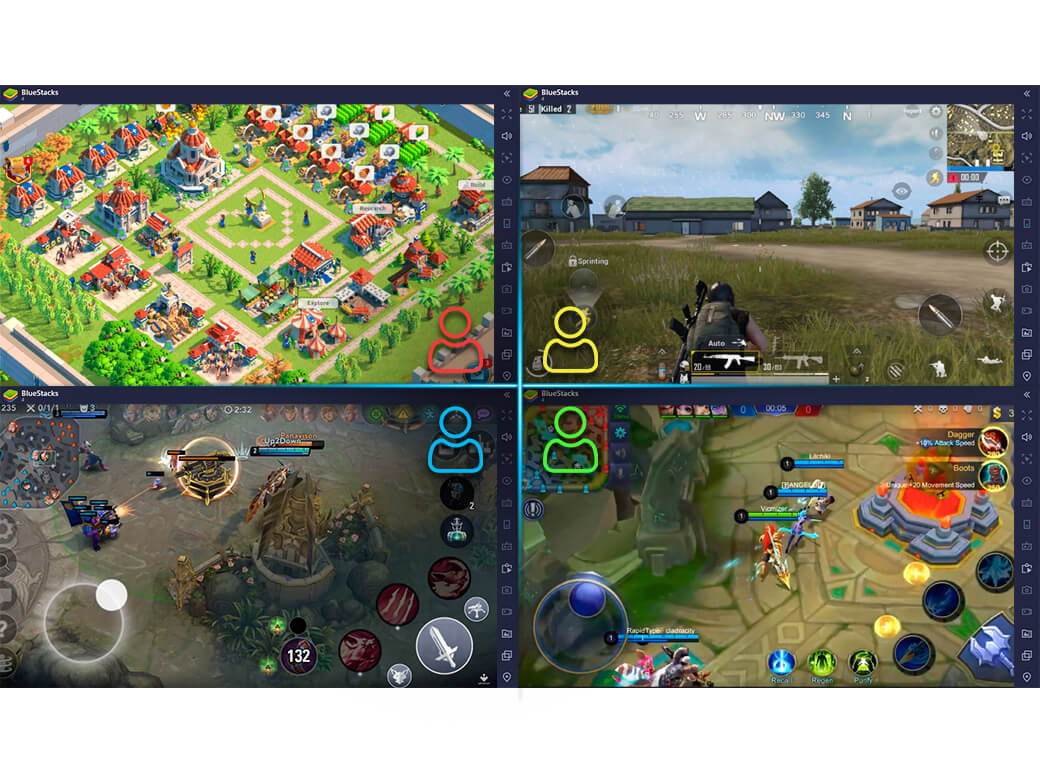
Skip the wait for a partner in your favorite RPGs. Have a party of your own in Lineage 2. Complete missions in Rise of Kingdom that require a minimum of 2 players. Join forces with an alliance from two of your own accounts in King of Avalon. Unlock massive gains, rewards, and levels.
![Play Multiple Instances of the Same Game]()
-
No overlap, Only Fun
With BlueStacks, there is something for every gamer. Fire up a fresh instance, login with a new account, and your friends and family can take turns to play their favorite android games on PC without disturbing your game.
![No overlap, Only Fun]()
-
Play 64-Bit and 32-Bit Android Games at the Same Time
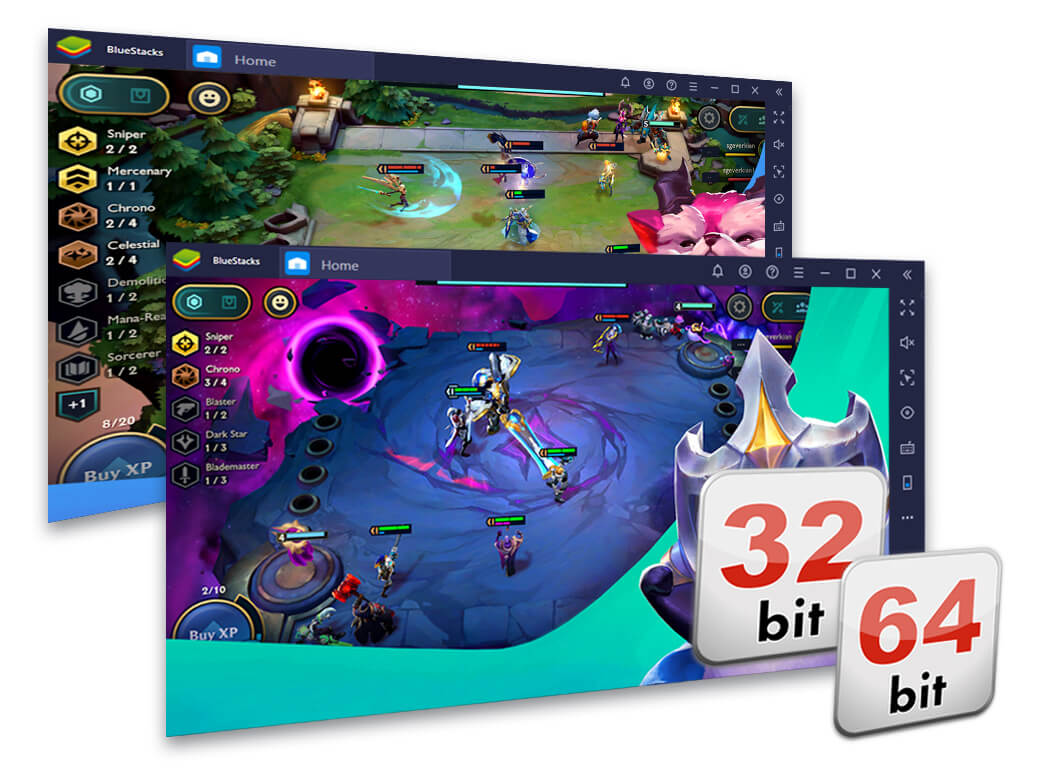
Want to play a game like Teamfight Tactics that only runs on Android 64-bit? Do it without any hassle with the Multi-Instance Manager. Just open up a fresh Instance of BlueStacks, select the Android version of the game and you’re done. Go ahead, continue playing multiple Android 32-bit and Android 64-bit games together on different BlueStacks instances without having to set up your BlueStacks base version from the start.![Play 64-Bit and 32-Bit Android Games at the Same Time]()

Rule the Game with Multi-instance. Here is How to Get started.
You should have the latest version of BlueStacks installed to be able to use this feature. Update it to the latest version if you haven’t done it yet.
Steps
-
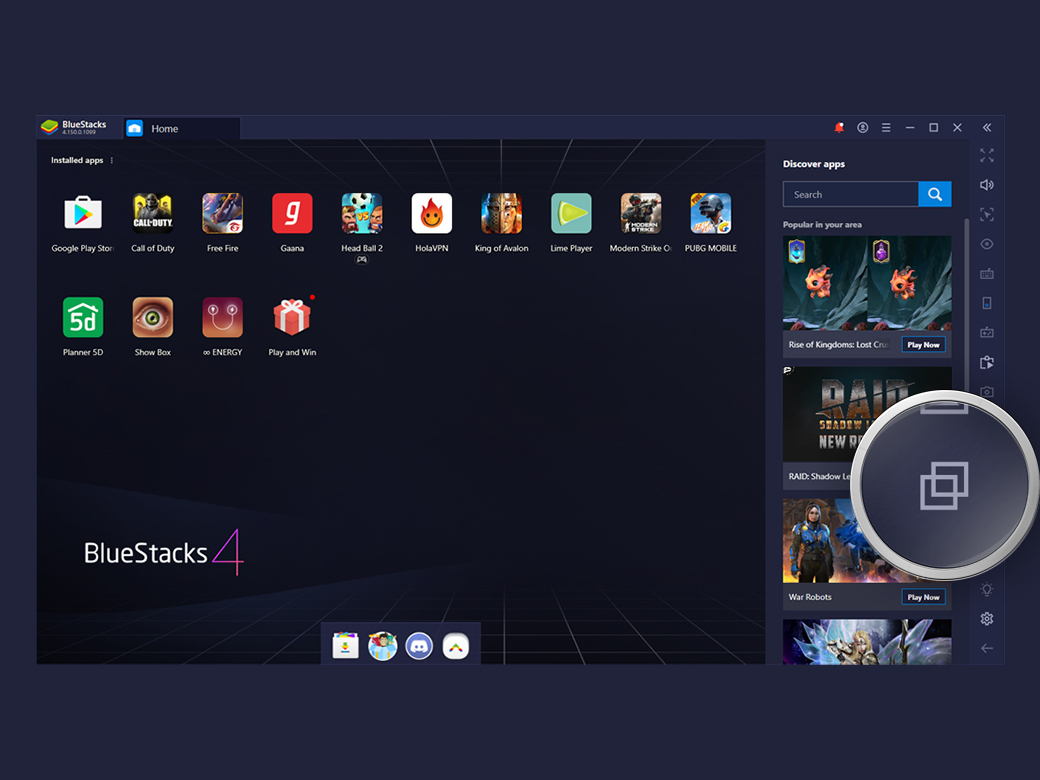
![Open the BlueStacks Multi-Instance Manager (the Instance Manager desktop shortcut gets added automatically or is pinned to start)]()
Open the BlueStacks Multi-Instance Manager (the Instance Manager desktop shortcut gets added automatically or is pinned to start)
-
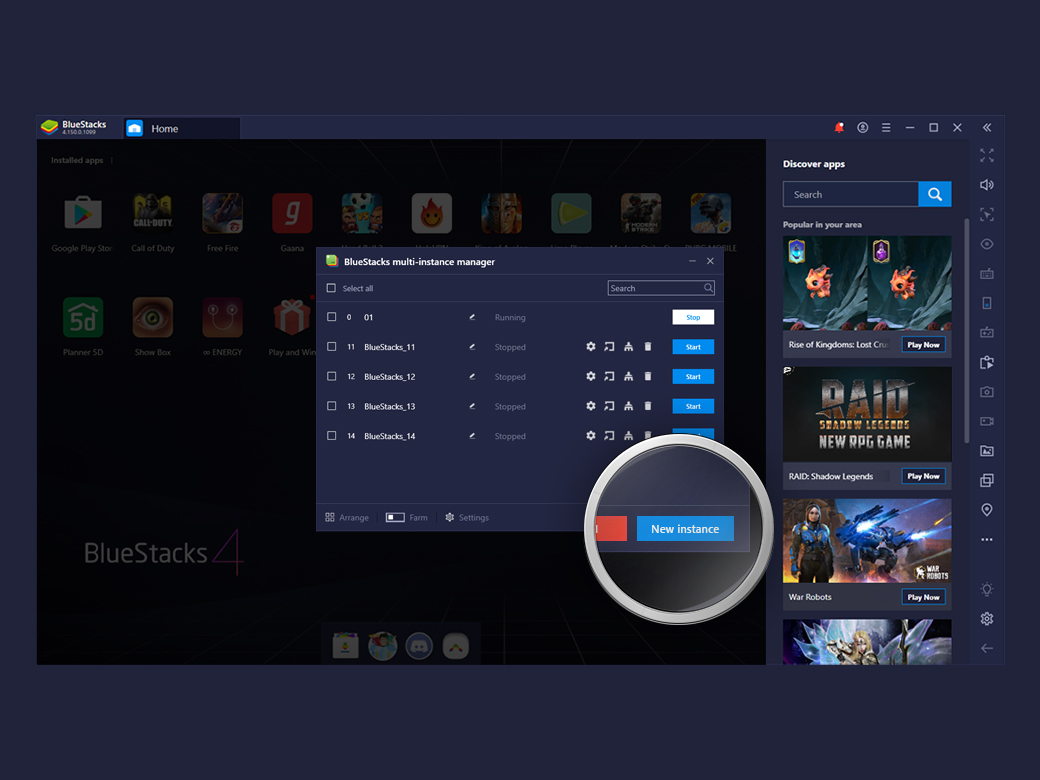
![Click on the New Instance Button to create a new instance]()
Click on the New Instance Button to create a new instance
-
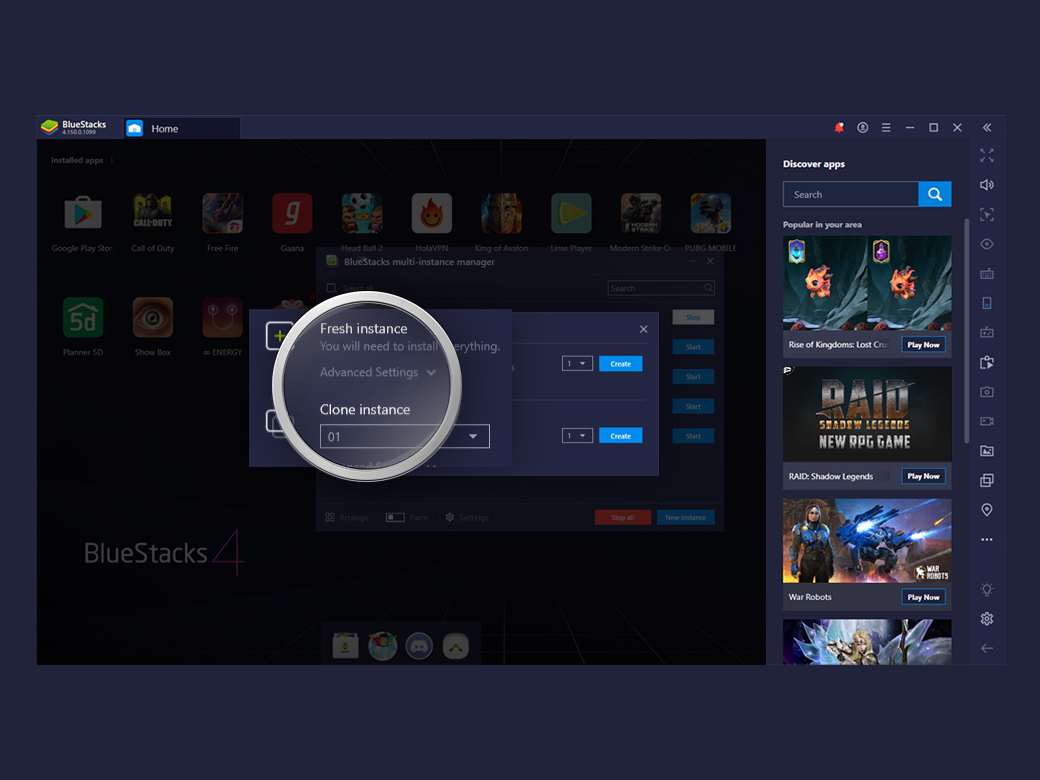
![Choose a Fresh Instance (New Google Account) or Clone (Same Google Play Account) an existing one]()
Choose a Fresh Instance (New Google Account) or Clone (Same Google Play Account) an existing one
-
![Start Playing]()
Start Playing
Multi-Instance Works Best With
-
![Multi Instance Feature]()
Rerolling
Reroll faster with multiple instances.
View Details -
![Multi Instance Feature]()
Macros
Record and replay actions with a single key press
View Details -
![Multi Instance Feature]()
Eco Mode
Optimize PC usage when running multiple instances
View Details -
![Multi Instance Feature]()
Multi-Instance Sync
Replicate actions in multiple instances in real time
View Details




The Best Game Guides - Read, Learn, Play, and Share.
See All



BlueStacks
is a PC platform.
Since you are on your phone, we are going to send you to the Google Play page.
(In some cases BlueStacks uses affiliate links when linking to Google Play)
Sorry, BlueStacks is available only for PC or Mac
BlueStacks
BlueStacks 4 is not available on Windows XP. You must have Windows 7 or higher. Windows 10 is recommended.
