



A VS Code extension for managing Claude Code configurations
Visualize, organize, and control all your Claude Code settings from one interface.



I love using Claude Code for my personal and professional projects when it works well. When CC goes off the rails with hallucinations or doing a task incorrectly, I would get frustrated. Antrhopic has provided lots of configurations for memories, slash commands, hooks, etc that fix these problems.
However, these configs can be scattered all over the place. I would forget where I told Claude how to draft a pull request -- was it a skill? a memory? a slash command? all three?
I built Claude Code Config because I use Claude Code extensively in my personal and professional projects and wanted quick insight into how Claude is set up for a given project.
Claude Code Config solves the problem of scattered configuration files by creating a single command center for managing all Claude Code settings. Instead of navigating between ~/.claude/ and .claude/ directories, users can visualize, create, edit, and organize everything from a VS Code sidebar.
Perfect for developers who want to:
- Manage Claude Code settings across your global, project, and local configurations.
- Quickly add agents, hooks, skills, commands with templates directly from Claude docs so you set them up right every time.
- Move a skill, hook, agent from a local project config to your global set up with one click so your other projects benefit from that skill.
- Quickly see what can and can't be executed by Claude Code Permissions
All your Claude Code configurations organized in one beautiful tree view:
-
Memories (CLAUDE.md) - Your project context and persistent knowledge with drill down into specific markdown levels.
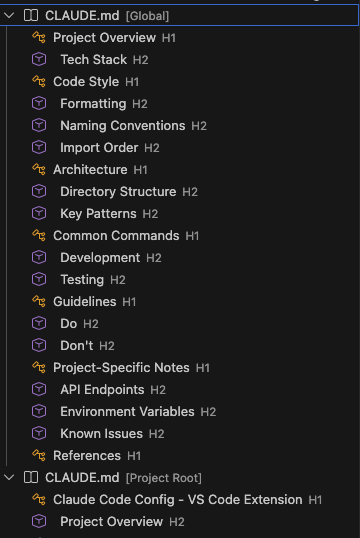
Navigate through your CLAUDE.md files by section - expand any heading to jump directly to that content.
-
Commands - Custom slash commands for your workflow
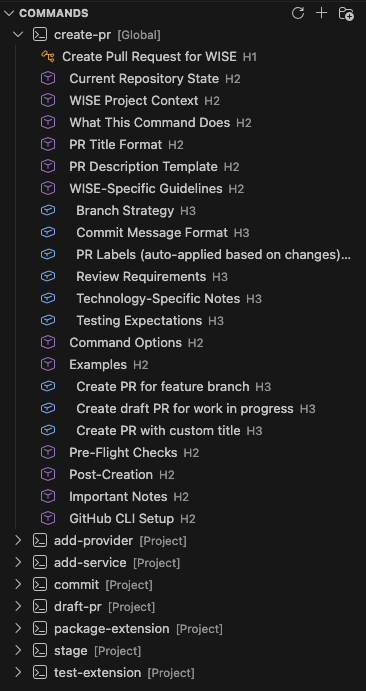
Explore command structure with expandable sections showing all H1, H2, and H3 headings for quick navigation.
-
Skills - Reusable AI capabilities and specialized behaviors
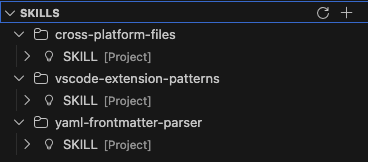
Organize skills in folders - each skill folder contains a SKILL.md file with specialized AI capabilities.
-
Sub-Agents - Task-specific agents with custom prompts (color coding included)
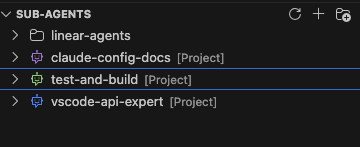
Organize agents in folders and see them color-coded based on their YAML frontmatter configuration.
-
Hooks - Create, edit, delete with a GUI interface for quick adding
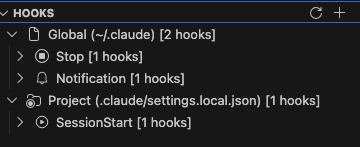
View all hooks organized by location (Global/Project), event type, and execution context.
-
Permissions - Fine-grained control over tool access
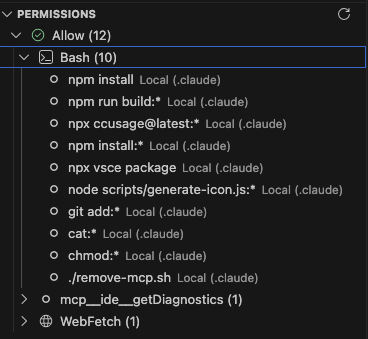
Browse all permission rules organized by type (Allow/Ask/Deny) and tool - see exactly what Claude Code can access.
- One-Click Creation - Add new configs with templates via
+buttons - Quickly Change Scopes - Move files between Global and Project with right-click
- Folder Organization - Create logical groupings for commands and sub-agents
- Live Sync - Auto-refresh when files change
- Color-Coded Agents - Sub-agents display in their configured colors for easy identification
- Quick Links to official Claude Code documentation for configs and setup.
Create and manage Claude Code hooks without touching JSON:
- Visual Hook Builder - Multi-step wizard for all hook types
- Organized Hierarchy - Browse by location → event → matcher → hook
- Quick Actions - Edit, delete, duplicate, or copy hooks with one click
- Support for All Events - PreToolUse, PostToolUse, SessionStart, and more
- Both Types - Command-based and LLM prompt-based hooks
Download "Claude Code Config" from the VS Code Marketplace
- Download the latest
.vsixfrom Releases - Open VS Code Extensions view (
Cmd+Shift+X/Ctrl+Shift+X) - Click
...menu → Install from VSIX... - Select the downloaded file
git clone https://github.com/drewipson/claude-code-config.git
cd claude-code-config
npm install
npm run build
# Press F5 in VS Code to launch Extension Development Host- Click the icon - Look for the Claude Code Config icon in the Activity Bar (left sidebar)
- Explore your configs - Expand sections to see your existing Claude Code files
- Create something new - Click any
+button to add memories, commands, skills, or sub-agents - Organize with folders - Right-click in Commands or Sub-Agents to create organizational folders
- Set up hooks - Click
+in Hooks view to add automation to your Claude Code workflow
Claude Code Config manages files in standard Claude Code locations:
~/.claude/                           # Global (all projects)
├── CLAUDE.md
├── commands/
│   ├── my-command.md
│   └── workflows/                   # Organized in folders
│       └── deploy.md
├── skills/
│   └── code-review.md
├── agents/
│   ├── researcher.md                # color: blue (in YAML frontmatter)
│   └── planner.md                   # color: purple
├── mcp_servers.json
└── settings.json                    # Hooks and permissions
.claude/                             # Project-specific
├── CLAUDE.md
├── commands/
├── agents/
└── settings.local.json              # Project hooks (gitignored)
Configure Claude Code Config in VS Code settings:
| Setting | Description | Default |
|---|---|---|
claudeCodeConfig.autoRefresh |
Auto-refresh views on file changes | true |
claudeCodeConfig.globalClaudePath |
Custom global .claude directory | ~/.claude |
Access via Command Palette (Cmd+Shift+P / Ctrl+Shift+P):
- Refresh All Views - Reload all configurations
- Create Memory - New CLAUDE.md file
- Create Command - New slash command
- Create Skill - New skill definition
- Create Sub-Agent - New sub-agent with template
- Create Hook - Launch hook creation wizard
Create powerful automation for your Claude Code workflow:
Supported Event Types:
PreToolUse/PostToolUse- Before/after tool executionPermissionRequest- When permissions are requestedUserPromptSubmit- When you submit a promptSessionStart/SessionEnd- Session lifecycleStop/SubagentStop- When agents finishNotification- System notificationsPreCompact- Before context compaction
Example Use Cases:
- Auto-format code after edits
- Run tests after file changes
- Validate prompts before submission
- Log all tool usage for auditing
- Block access to sensitive files
See all your permission rules organized by:
- Type - Allow, Ask, or Deny
- Tool - Read, Edit, Write, Bash, etc.
- Pattern - Specific files or patterns
Click any rule to jump to the settings file for editing.
Configure agent colors in YAML frontmatter:
---
name: my-agent
color: purple
---
The icon in the tree view will display in that color for easy identification!
- Node.js 18+
- VS Code 1.85.0+
npm install          # Install dependencies
npm run watch        # Development mode with auto-rebuild
npm run build        # Production build
npm run lint         # Run ESLint
npx vsce package # Build .vsix packagesrc/
├── extension.ts # Main activation
├── core/
│ ├── types.ts # TypeScript interfaces
│ └── constants.ts # Shared constants
├── providers/
│ └── claudeTreeDataProvider.ts # Tree view logic
├── services/
│ ├── fileDiscoveryService.ts # Find configs
│ ├── fileOperationsService.ts # CRUD operations
│ ├── hooksService.ts # Hooks management
│ ├── permissionsService.ts # Permissions parsing
│ └── mcpService.ts # MCP server discovery
└── utils/
├── yamlParser.ts # YAML frontmatter parsing
└── markdownParser.ts # Markdown section parsing
Contributions are welcome! Here's how to help:
- Fork the repository
- Create a feature branch -
git checkout -b feature/amazing-feature - Make your changes - Follow existing code style
- Test thoroughly - Ensure nothing breaks
- Commit with conventional commits -
feat:,fix:,docs:, etc. - Push and create a PR - Describe your changes
- 📊 Usage analytics dashboard
- 🌐 Internationalization (i18n)
- 🔌 Plugin Management Support
- 🎨 Additional themes/icons
- 📝 Documentation improvements
- 🐛 Bug fixes and optimizations
See LICENSE file for details.
- Issues - GitHub Issues
- Discussions - GitHub Discussions
- Documentation - Claude Code Docs
Built with ❤️ for the Claude Code community
If this extension helps your workflow, consider giving it a ⭐ on GitHub!