



Descripción
PublishPress Blocks has everything you need to build professional websites with the WordPress block editor. This plugin has complete set of management tools for blocks. You can control which users can add which blocks to posts. You can manage block visibility, including user roles, date, time, device, screen size, and day of the week. Plus you can set default CSS styles, find all your blocks, manage your reusable blocks, and much more.
Powerful block editor features in PublishPress Blocks
- Block Permissions: You can control who can use each block, including default WordPress blocks.
- Extra Blocks: There are over 20 extra blocks including accordions, tabs, and sliders.
- PublishPress Blocks: The blocks include accordions, galleries, sliders, tabs, maps, tables, recent posts, and more.
- Block Styles: You can add your own CSS styles for your blocks. Anyone editing posts can quickly add the styles to blocks.
- Block Controls: You can control block visibility, including user role, date, time, device, day of the week, and more.
- Block Usage: You can scan the posts on your website to find where your blocks are used.
- Reusable Blocks: You get easy access to manage and edit all the reusable blocks on your site.
- Auto-Insert Blocks: Automatically insert blocks into any location in your posts.
PublishPress Blocks Pro
Actualizar a Blocks Pro
Este plugin es la versión gratuita de PublishPress Blocks. La versión Pro incluye soporte más rápido y todas las características que necesitas para sobrealimentar el editor de bloques de WordPress. ¡Haz clic aquí para comprar el mejor plugin premium de bloques de WordPress ahora!
Block Permissions: Control Who Use Each Block
PublishPress Blocks allows you to enable or disable Gutenberg blocks for user roles. For example, you can disable the “Classic” block if you don’t want users to rely on the old WordPress editor. Using the PublishPress Blocks plugin, you can allow some user roles to use the Gutenberg blocks that you choose. You can select which blocks in the Blocks list will be available to each role.
Click here to see how to control who can use each block.
Extra Blocks: Over 20 Extra Gutenberg Blocks
PublishPress Blocks tiene todo lo que necesitas para construir sitios web profesionales con WordPress. Aquí hay una introducción a los bloques disponibles con el plugin PublishPress Blocks:
- Accordion block: You can create a PublishPress Accordion block when you need to display a lot of content in a small area. Your site visitors will be able to click on accordion bars that slide out to reveal content.
- Button block: The PublishPress Button block is based on the default Button block in Gutenberg. This improved version of the button block has tons of extra features including advanced styling such as hover, margin, border, padding, shadows and more.
- Columns Manager block: The PublishPress Columns block is based on the default Columns block in Gutenberg. This new version of the block has many extra features including extra layout options, padding, margins and much more.
- Bloque de Formulario de contacto: el bloque de Formulario de contacto te permite crear un formulario y recibir mensajes de los clientes. Puedes personalizar todos los aspectos del formulario, incluidos los campos, el texto, los colores, el estilo y la protección contra spam. También puedes ver y exportar todas las entradas de tus formularios.
- Content Display block: PublishPress Blocks has a block to display your latest posts. Several views are available including Grid, List, Slider, Frontpage, Newspaper and Masonry. Some views have its own layouts and settings
- Count Up block: The PublishPress Count Up block is perfect for showcasing a number in Gutenberg. You can use it to show how many clients you have, how much money you have raised, how many cups of coffee you’ve served, or anything else.
- Google Maps block: The PublishPress Map block allows you to display a Google Map in the Gutenberg editor. You can create maps with custom icons, tooltips, description, zoom levels and much more.
- Icon block: The PublishPress Icon block allows you to add icons to WordPress content. This block uses Google’s Material Design icons. You can customize the style, size, color, link, margin, padding, background, border and more.
- Image block: The PublishPress Image block is based on the default Image block in Gutenberg. This improved version of the block has tons of extra features including focal points, overlays, custom text and more.
- Images Slider block: If you want to show multiple images in a slider / slideshow, then the PublishPress Images Slider Block is a great option. This Gutenberg block has advanced features including overlays, auto height, text, color and alignment options.
- Info Box block: The PublishPress Info Box Block is a great way to show important information in the Gutenberg editor. You can have large, colorful icon displayed next to a large title and some text. This block allows you to use Google’s Material Design icons.
- List block: The PublishPress List block is based on the default List block in Gutenberg. This improved version of the block has tons of extra features including advanced styling such as custom icons, text size, margin, padding and more.
- Login / Register Form block: The PublishPress Login & Register block allows you to load a WordPress login or register form inside Gutenberg. You can also setup a redirect URL after login and customize the design by adding your own logo and colors.
- Newsletter block: The PublishPress Newsletter block can save your future customers email for your marketing operations. You can create a sign-up block that’s customized with your own styling and text.
- Search bar block: The PublishPress Search Bar block allows you to add a very customizable search form into Gutenberg. You can change the colors, icons, width and text of your search bar.
- Social Links block: You can share your social media profiles very easily by using the PublishPress Social Links block. This block allows you to add links to your company / organization / personal profile on all the major social networks.
- Table of Contents block: The PublishPress Table of Contents block allows you to show a Table of Contents for your posts created with Gutenberg. WordPress automatically creates this Table of Contents using the headings in your post. This block enables you to place that Table of Contents so your visitors can see it.
- Table block: The PublishPress Table block is based on the default Table block in Gutenberg. This improved version of the block has tons of extra table features including advanced styling such as margin, padding, alignment, colors and more.
- Tabs block: You can create a PublishPress Tabs block when you need to display a lot of content in a small area. The tabs are mobile-friendly, can be horizontal or vertical, and can be customized with your colors and design.
- Testimonial block: The PublishPress Testimonial block allows you to add clients testimonials to Gutenberg. You can add testimonials using columns or a slider. You can show the avatar, name, job position and description for each testimonial.
- Video block: The PublishPress Video block is based on the default Video block in Gutenberg. The PublishPress Video block is most useful for videos hosted on your WordPress site. This block has tons of extra features, including advanced styling, for locally-hosted videos.
- Bloque de WooCommerce: PublishPress Blocks viene con un bloque para mostrar tus productos de WooCommerce. Hay 2 diseños disponibles para el bloque Productos Woo: las vistas Cuadrícula y Carrusel.
And there are also special blocks and features available in PublishPress Blocks Pro:
- Countdown block: With the PublishPress Countdown blocks, you can create a highly customizable countdown to an event. This block is available in PublishPress Blocks Pro.
- Bloque de Lista de características: con la versión Pro del plugin PublishPress Blocks, puede crear un bloque de Lista de características cuando necesites mostrar una lista de todos los elementos disponibles de un producto o servicio.
- Bloque de Tabla de precios: con la versión Pro del plugin PublishPress Blocks, puedes crear un bloque de Tabla de precios cuando necesites mostrar a las personas las opciones de compra o suscripción en tu sitio.
- Google Fonts with core blocks: The Pro version of the PublishPress Blocks allow you to add use Google fonts with some core Gutenberg blocks such as paragraph and heading.
PublishPress Blocks features the best content block in WordPress. You can use the “Content Display” block to create blog layouts, lists of posts by a specific author, or even complete newspaper frontpages.
Este bloque te permite mostrar entradas, páginas y otros tipos de contenido en muchos diseños hermosos. Estas opciones de diseño son Cuadrícula, Portada, Lista, Periódico, Ladrillos y Carrusel.
También tienes docenas de formas diferentes de personalizar tu contenido. Puedes filtrar tu contenido por autor, categoría o etiqueta. Puedes agregar muchos tipos de datos a tus diseños, incluída la fecha de entrada, la fecha de actualización, las imágenes, los autores, los extractos, el texto de introducción, los comentarios y más.
We’ve already mentioned many features of the Content Display block. So what are you waiting for? Install PublishPress Blocks and check out the Content Display block. This block really is the best way to showcase your posts in the Gutenberg editor.
Block Styles: Custom Design for Your Blocks
You can create custom styles for blocks and make them available to end users. Name the style, and let the content editors use it when they need it. There’s an easy-to-use tool for creating styles, or you can bring your own CSS.
Click here to see how to create block styles.
Block Controls: Control Block Visibility on Your Site’s Frontend
With Block Controls, you can schedule when blocks are shown, and also add user role restrictions. You can show blocks based on device type, browser, operating system, cookies, user data, and much more.
Click here to read how to use block controls.
There are over a dozen different kinds of block visibility control available:
- Schedule: schedule when to start showing and/or stop showing a block.
- User roles: choose which users can see your blocks.
- Device Width: show and hide blocks on specific device sizes.
- Device Type: Select what type of device this block will be visible on.
- Browser: Choose which browsers can see this block.
- Operating System: Choose which operating systems can see this block.
- Cookie: Show or hide the block based on cookie values.
- User Meta: Show or hide block based on user meta values.
- Post Meta: Show or hide block based on post meta values.
- Query String: Show or hide block based on URL query parameters.
- Capabilities: Show or hide block based on user capabilities.
- Term Archives: Choose on which taxonomies and terms archive pages your blocks can be displayed.
- Pages: Choose in which pages this block can be displayed.
Block Usage: Find Your Blocks
The Block Usage feature allows you to search for and find any usage of blocks on your site. Find your blocks quickly. Using this screen, you can scan all the content on your site and find where each block is located.
Click here for more on the Block Usage Screen.
Reusable Blocks: Build a Block Once and Use it Everywhere
When you are using PublishPress Blocks, a submenu for Reusable Blocks is enabled by default. This submenu allows you to reach the “Reusable blocks” page screen that is normally difficult to find in WordPress. Reusable blocks are an incredibly useful feature in the Gutenberg block editor. They allow you to create content once and use it multiple times inside different posts and pages.
Click here for more on the Reusable Blocks Screen.
Reusable Blocks: Build a Block Once and Use it Everywhere
When you are using PublishPress Blocks, a submenu for Reusable Blocks is enabled by default. This submenu allows you to reach the “Reusable blocks” page screen that is normally difficult to find in WordPress. Reusable blocks are an incredibly useful feature in the Gutenberg block editor. They allow you to create content once and use it multiple times inside different posts and pages.
Click here for more on the Reusable Blocks Screen.
Auto-Insert Blocks
The Auto-Insert Blocks feature allows you to automatically insert reusable blocks into posts. You can choose to insert your blocks according position, categories, tags, and other criteria. This ideal for adding promotional banners, newsletter sign-ups, or anything that needs to be shown multiple times in your posts.
Click here for more on Auto-Insert Blocks.
Únete a PublishPress y obtén los plugins Pro
Las versiones Pro de los plugins de PublishPress bien valen la pena su inversión. Las versiones Pro tienen características adicionales y soporte más rápido. Haz clic aquí para unirte a PublishPress.
Join PublishPress and you’ll get access to these ten Pro plugins:
- PublishPress Authors Pro te permite agregar múltiples autores y autores invitados a las entradas de WordPress.
- PublishPress Blocks Pro tiene todo lo que necesitas para crear sitios web profesionales con el editor de bloques de WordPress.
- PublishPress Capabilities Pro es el plugin para administrar tus roles, permisos y capacidades de usuario de WordPress.
- PublishPress Checklists Pro te permite definir tareas que deben completarse antes de publicar el contenido.
- PublishPress Future Pro allows you to schedule changes to WordPress Posts.
- PublishPress Permissions Pro es el plugin para permisos avanzados de WordPress.
- PublishPress Planner Pro is the plugin for managing and scheduling WordPress content.
- PublishPress Revisions Pro te permite actualizar tus páginas publicadas con trabajo en equipo y precisión.
- PublishPress Series Pro te permite agrupar contenido en una serie.
- PublishPress Statuses Pro enables you to create additional publishing steps for your posts.
Juntos, estos plugins son un conjunto de potentes herramientas de entrada para WordPress. Si necesitas crear un flujo de trabajo profesional en WordPress, con moderación, revisiones, permisos y más… entonces deberías probar PublishPress.
Informes de errores
Los informes de errores de PublishPress Blocks son bienvenidos en nuestro repositorio en GitHub. Tenga en cuenta que GitHub no es un foro de soporte y que los problemas que no estén debidamente calificados como errores se cerrarán.
Sigue al equipo de PublishPress
Capturas
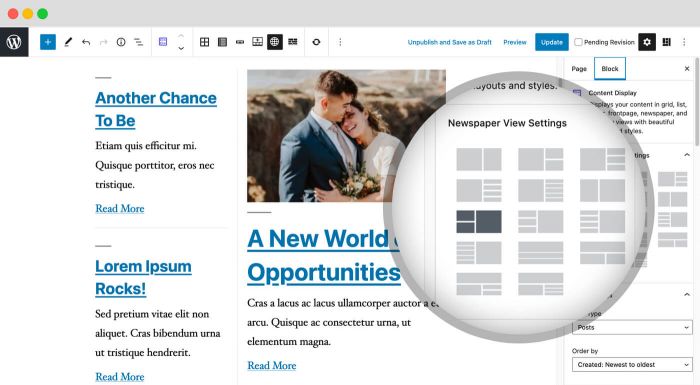
Bloque de Visualización de contenido: los bloques de PublishPress incluye bloque de Visualización de contenido, un poderoso bloque para mostrar entradas, páginas y tipos de entradas personalizadas en muchos diseños hermosos. 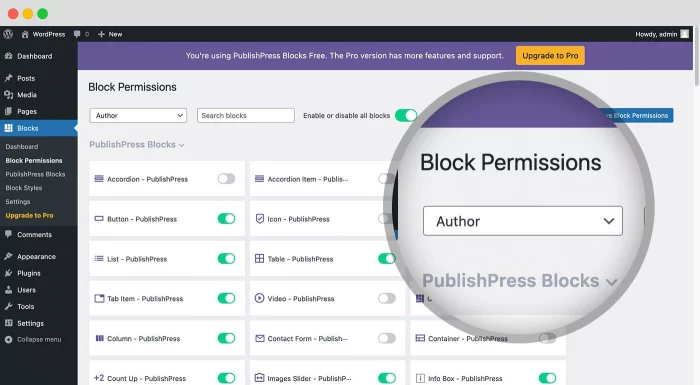
Block permissions: PublishPress Blocks allows you to enable or disable blocks per user role. 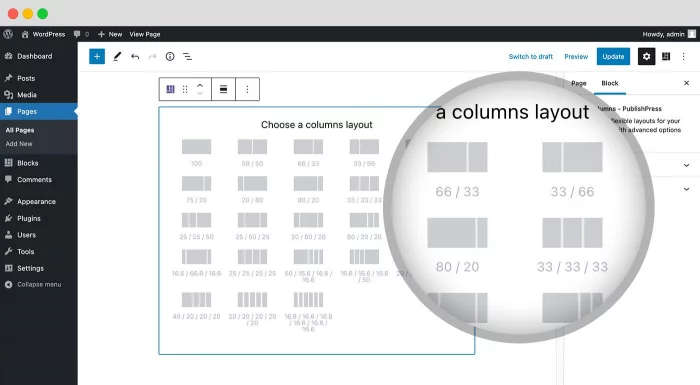
Column Layouts: PublishPress Blocks allows you to create flexible and beautiful layouts. You get 23 layouts options with different options for desktop, tablet and mobile devices. 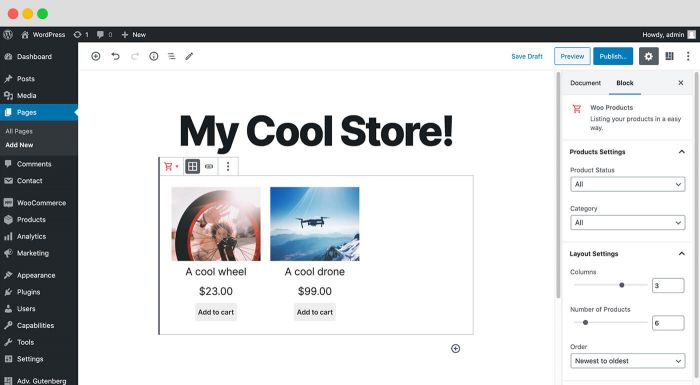
Productos WooCommerce: PublishPress Blocks viene con un bloque para mostrar tus últimos productos de WooCommerce. 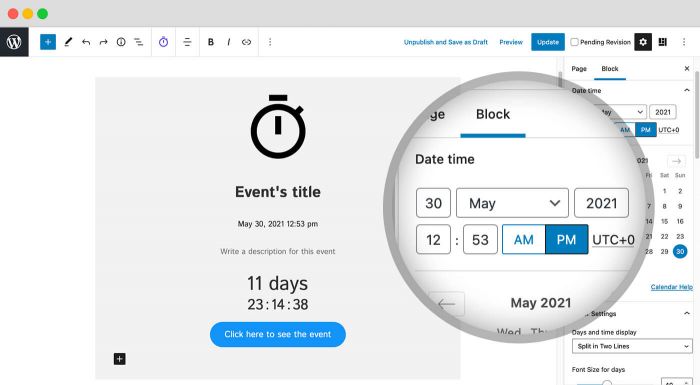
Bloque de Cuenta regresiva: crea un bloque de Cuenta regresiva personalizable con muchas configuraciones, incluído el diseño de fecha y hora, el tamaño de fuente y más. 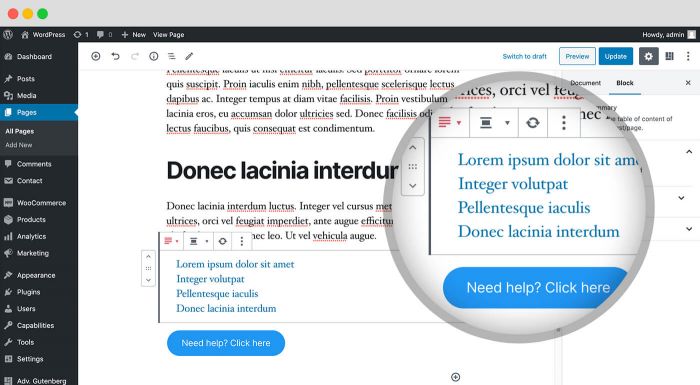
Bloques de contenido: PublishPress Blocks tiene múltiples bloques para mejorar su contenido. Puedes crear un bloque de Tabla de contenido, crear listas elegantes con iconos y agregar botones atractivos con muchas opciones de diseño. 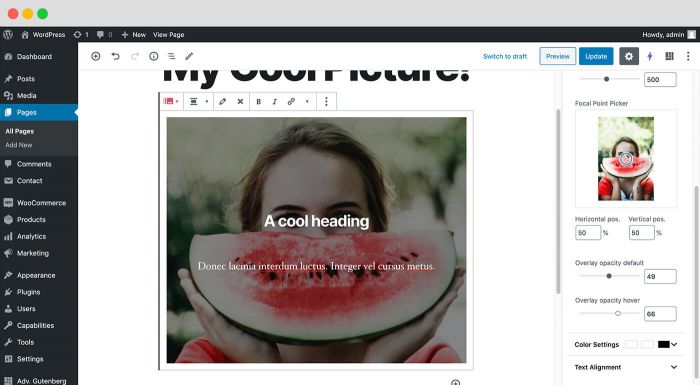
Image and Video Blocks: With the PublishPress Video block, you can display remote or local videos with a customizable player and tons of options. The PublishPress Image block: get more controls over your images with zoom, opacity, captions and much more. 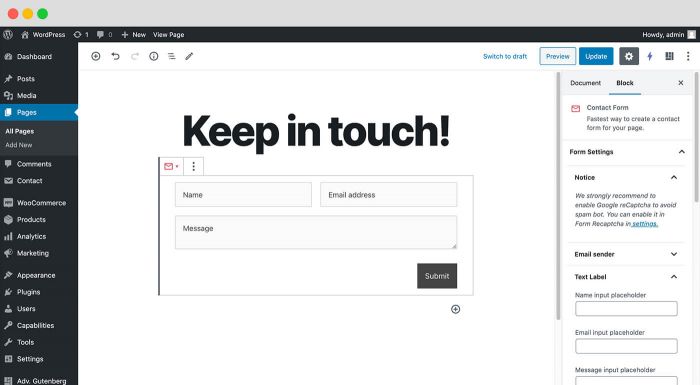
Bloques de correo electrónico y formulario de contacto: puedes crear un formulario de contacto y también bloques de suscripción a boletines. 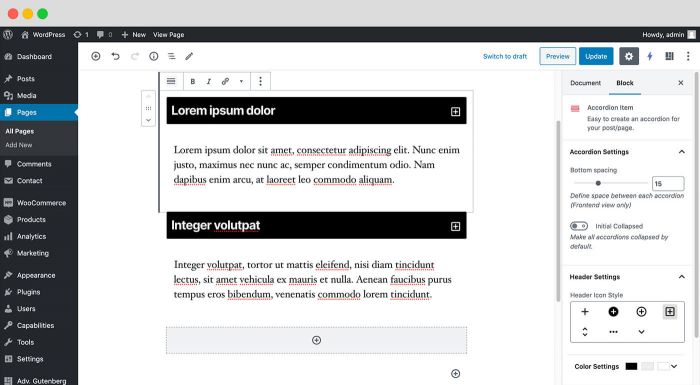
Bloque de Acordeón de Gutenberg: Puedes mostrar contenido en un diseño de acordeón. El contenido de cada acordeón puede ser editado visualmente. 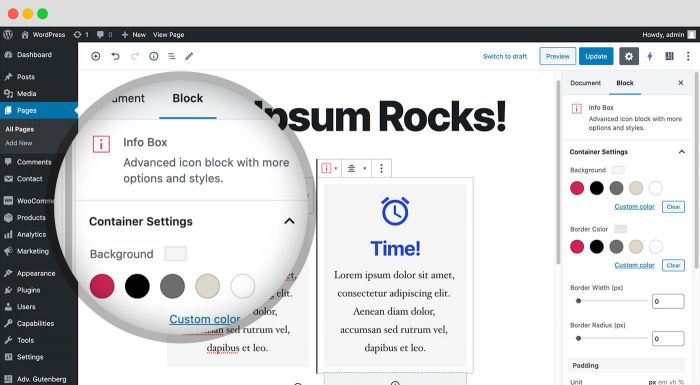
Bloques de Iconos y Caja de información de Gutenberg: Los bloques de Caja de información te permiten mostrar información con un icono, título y texto con estilos personalizados. 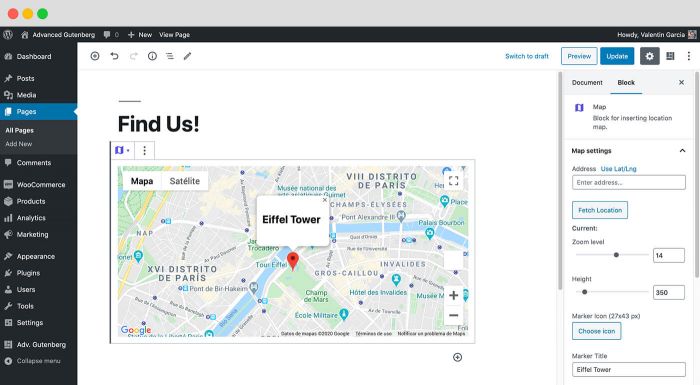
Google Maps: Con el bloque Mapa puedes mostrar un Mapa de Google con un icono personalizado, información sobre herramientas y descripción. 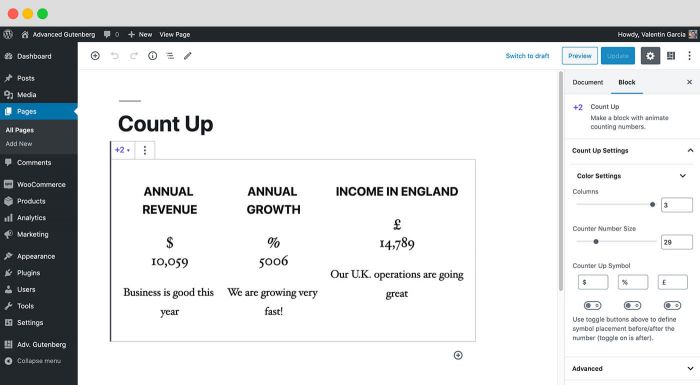
Bloques de Recuento: El bloque Recuento es perfecto para mostrar números en Gutenberg. Puedes usarlo para mostrar cuántos clientes tienes, cuánto dinero has recaudado, etc. 
Bloques de testimonios: El bloque de testimonios te permite agregar testimonios de clientes a Gutenberg. 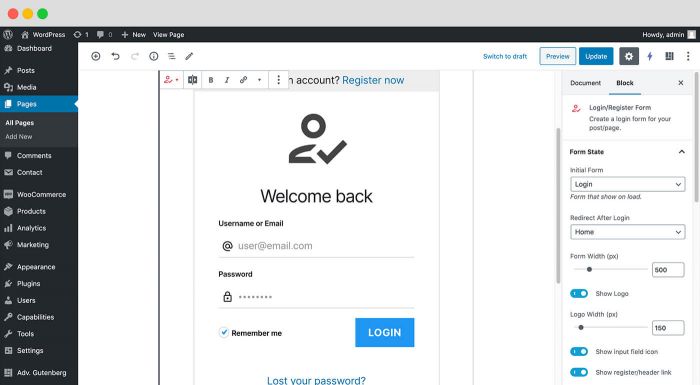
Bloque de Acceso/registro de Gutenberg: Este bloque te permite cargar un formulario de inicio de sesión o registro de WordPress dentro de Gutenberg. 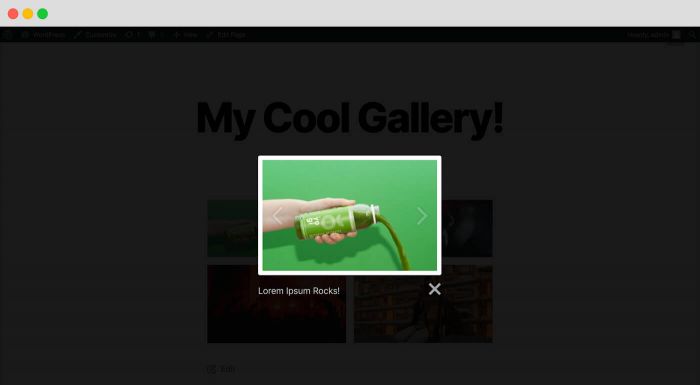
Mejoras en la galería: PublishPress Blocks tiene mejoras importantes para las galerías predeterminadas de WordPress, incluído popups, los subtítulos de las imágenes y una mejor navegación de las imágenes. 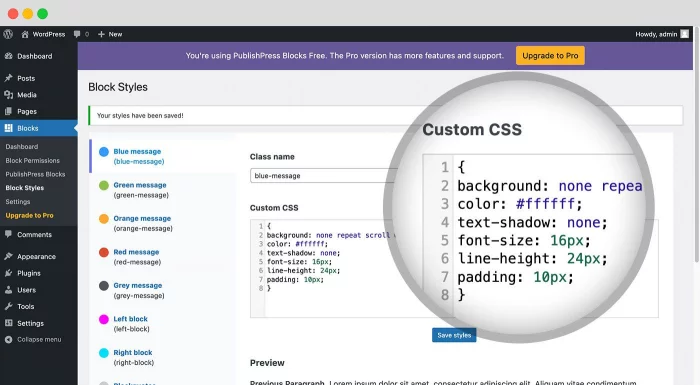
Block Styles: You create custom CSS styles for blocks and make them available to end users.
Bloques
Este plugin proporciona 27 bloques.
- Advgb Accordions
- Advgb Button
- Advgb Columns
- Advgb Contact Form
- Advgb Count Up
- Advgb Image
- Advgb Images Slider
- Advgb Infobox
- Advgb Icon
- Advgb List
- Advgb Login Form
- Advgb Map
- Advgb Newsletter
- Advgb Search Bar
- Advgb Social Links
- Advgb Summary
- Advgb Table
- Advgb Tabs
- Advgb Testimonial
- Advgb Video
- Advgb Woo Products
- Advgb Adv Tabs
- Advgb Countdown
- Advgb Feature
- Advgb Feature List
- Advgb Pricing Table
- Advgb Recent Posts
Instalación
Para instalar el plugin automáticamente:
- A través del administrador de WordPress, usa el menú: Plugin > Añadir nuevo
- Buscar bloques de PublishPress
- Haz clic en instalar y luego haz clic en el enlace de activación
Preguntas frecuentes
-
¿Puedo obtener soporte para PublishPress Blocks?
-
Respondemos a todas las preguntas sobre el editor en el foro aquí (en inglés), solo pregunte 🙂 También tenemos documentación en línea aquí.
-
¿Cómo agrego bloques de acordeón en Gutenberg?
-
You can create a PublishPress Accordion block by clicking the “Accordion – PublishPress” button in the PublishPress Blocks category. When you first create this block, you will see 2 accordion elements that display by default. Once created, you can adjust the header, body or border options for your accordion. The Accordion block also allows you to customize the borders of the accordion areas:
Haz clic aquí para obtener más información sobre los bloques de acordeón de Gutenberg.
-
The PublishPress Button block is based on the default Button block in Gutenberg. This improved version of the button block has tons of extra features including advanced styling such as hover, margin, border, padding, shadows and more. You can create a PublishPress Button block by clicking the “Accordion – PublishPress” button in the PublishPress Blocks section. There are options for customizing the test size, background color and text color for the button. There are also customization options for the color, borders, margin, and padding of your buttons. You can choose settings that control what visitors see when they hover over your button blocks.
Haz clic aquí para obtener más información sobre los bloques de botón de Gutenberg.
-
¿Cómo agrego bloques de iconos en Gutenberg?
-
The PublishPress Icon block allows you to add icons to WordPress content. This block uses Google’s Material Design icons. You can customize the style, size, color, link, margin, padding, background, border and more. You can create a PublishPress Icon block by clicking the “Icon – PublishPress” button in the PublishPress Blocks section. After you choose an icon, you will see extra settings in the right sidebar, including Icon Size, Icon Color, Icon Background, Border, Border Size, Border Radius.
Haz clic aquí para obtener más información sobre los bloques de Icono avanzado de Gutenberg.
-
¿Cómo agrego bloques de lista en Gutenberg?
-
The PublishPress List block is based on the default List block in Gutenberg. This improved version of the block has tons of extra features including advanced styling such as custom icons, text size, margin, padding and more. You can create a PublishPress List block by clicking the “List – PublishPress” button in the PublishPress Blocks section. After creating the PublishPress List block, you can adjust the settings from the right sidebar. You can change the icon and it’s settings which include List icon, Icon size, Line height, Margin, Padding, and more.
Haz clic aquí para obtener más información sobre los bloques de lista de Gutenberg.
-
¿Cómo agrego bloques de tabla en Gutenberg?
-
The PublishPress Table block is based on the default Table block in Gutenberg. This improved version of the block has tons of extra table features including advanced styling such as margin, padding, alignment, colors and more. You can create a PublishPress Table block by clicking the “Table – PublishPress” button in the PublishPress Blocks section. After choosing the PublishPress Table block, you can choose the number of columns and rows for your table layout. You can edit the table after setting the number of columns and rows. The options include:
- Agregar una fila antes
- Agregar una fila después
- Eliminar fila
- Agregar una columna antes
- Agregar una columna después
- Eliminar columna
- Separa celdas fusionadas
- Fusionar celdas
Haz clic aquí para obtener más información sobre los bloques de Tabla avanzada de Gutenberg.
-
¿Cómo agrego bloques de pestañas en Gutenberg?
-
You can create a PublishPress Tabs block when you need to display a lot of content in a small area. The tabs are mobile-friendly, can be horizontal or vertical, and can be customized with your colors and design. To insert a PublishPress Tabs block, click the “Tabs – PublishPress” button in the PublishPress Blocks category. You can add tabs using the large + icon. You can remove tabs using the yellow X icon. The block settings allow you to adjust the tab direction and also which tab people will see when they open the page.
Haz clic aquí para obtener más información sobre los bloques de pestañas de Gutenberg.
-
¿Cómo agrego bloques de columnas en Gutenberg?
-
The PublishPress Columns block is based on the default Columns block in Gutenberg. This new version of the block has many extra features including extra layout options, padding, margins and much more. If you want to create a block containing other blocks inside, you should choose “Columns – PublishPress” in PublishPress Blocks category. Then you can add any types of block you want in each column. You can choose different layouts for Desktop, Tablet, and Mobile displays. You can also choose the space between columns, padding, margin, and much more.
Haz clic aquí para obtener más información sobre los bloques de columnas de Gutenberg.
-
¿PublishPress Blocks ralentiza mi sitio web?
-
No. El impacto es mínimo porque nuestro plugin depende significativamente de herramientas proporcionadas por el editor nativo Gutenberg.
Muchos de nuestros bloques están construidos sobre los bloques predeterminados de Gutenberg, por lo que se necesita un poco de código adicional. Y si decide dejar de usar PublishPress Blocks, cualquier bloque de Gutenberg volverá de forma segura a HTML. Esto significa que PublishPress Blocks es una opción segura para utilizar, debido a que su contenido no está bloqueado en nuestro plugin para siempre.
Obtener más información sobre cómo deshabilitar PublishPress Blocks.
-
¿Puedo agregar una pantalla popup al bloque de galería de WordPress?
-
Sí, con el plugin PublishPress Blocks, puedes mostrar imágenes de WordPress dentro de un popup. Esta función no está disponible en el bloque regular de galería de WordPress. Esta función se encuentra en la pantalla de Configuración de PublishPress Blocks. Esto modificará el bloque predeterminado “Galería” en WordPress.
- Abrir galerías en popup: Esto agregará automáticamente una pantalla popup a las imágenes en el bloque de “Galería”.
- Image caption: This feature will automatically take the alt text or caption for an image and show it as captions for images in lightboxes. You can choose between display the caption below the image or over.
-
¿Puedo agregar enlaces de anclaje a los bloques de WordPress?
-
Sí, es posible crear enlaces de anclaje para bloques de Gutenberg. Esto te permite crear enlaces directos a bloques, en lugar de a la parte superior de una página. Permiten a los visitantes hacer clic en un enlace y moverse instantáneamente hacia arriba o hacia abajo en una página larga.
- Al editar un bloque, busque la pestaña “Avanzado” en la barra lateral derecha.
- En la pestaña “Avanzado”, busca el cuadro “Anclaje HTML”.
- Introduce el nombre de su ancla.
Esta característica está disponible para todos los bloques de PublishPress, excepto para estos:
- Icons
- Columns
- Caja de información
- Content Display
- Testimonial
-
¿Qué sucede con mi contenido si desactivo PublishPress Blocks?
-
Si deshabilita el plugin PublishPress Blocks, los bloques volverán a HTML. Esto significa que PublishPress Blocks es una opción segura de usar, porque su contenido no está atado a nuestro plugin para siempre. Nuestro plugin no tendrá un impacto negativo en el uso del editor de bloques.
Haz clic aquí para obtener más información sobre la desactivación de bloques
-
¿Cómo se compara PublishPress Blocks con CoBlocks, Kadence Blocks, Getwid, Ultimate Blocks?
-
Todos estos son buenos bloques para Gutenberg. PublishPress Blocks tiene fortalezas particulares con las 5 características que mencionamos en la introducción:
- Las mejores noticias / Bloque de contenido en WordPress
- Más de 20 bloques de Gutenberg adicionales
- Permisos para el editor de bloques
- Block styles to add reusable custom CSS to any block
- Layout de bloques y características del page-builder
-
Sí, usamos la frase “publishpress-advg-install” para compartir enlaces de instalación. Verás este texto incluido en los enlaces de otros plugins de PublishPress.
Reseñas


Colaboradores y desarrolladores
Este software es de código abierto. Las siguientes personas han contribuido a este plugin.
Colaboradores


“PublishPress Blocks – Block Controls, Block Visibility, Block Permissions” ha sido traducido a 12 idiomas locales. Gracias a los traductores por sus contribuciones.
Traduce “PublishPress Blocks – Block Controls, Block Visibility, Block Permissions” a tu idioma.
¿Interesado en el desarrollo?
Revisa el código, echa un vistazo al repositorio SVN o suscríbete al registro de desarrollo por RSS.
Registro de cambios
The full changelog can be found on GitHub.