


WordPress Security Controls
WordPress VIP’s infrastructure has built-in mitigations for security threats that are specific to WordPress applications. WordPress Security Controls provides an additional layer of security and configurable options in the VIP Dashboard. The WordPress Security Controls panel also provides status reports on the overall security of a site and recommendations for how the site’s security can be improved.
Limitations
- Settings are per-environment. For WordPress multisite environments, different settings cannot be applied per-network site.
- If the
remove_all_filters()function exists in application code, WordPress Security Controls will not work as expected.
Access
Prerequisite
To access and manage settings in the WordPress Security Controls panel, a user must have at minimum an App write role for an application or an Org admin role.
To access the WordPress Security Controls panel in the VIP Dashboard:
- Navigate to the VIP Dashboard for an application.
- Select an environment from the dropdown located at the upper left of the dashboard.
- Select “Security Controls” from the sidebar navigation at the left of the screen.
- Select “WordPress” from the navigation submenu.
Security Status
An assessment of the quality of the environment’s security status and an indication of recommendations for improvement.
- Excellent: The latest version of WordPress is running on the environment, no plugin vulnerabilities are detected, and environment configurations are as secure as possible.
- Good: Two or less recommendations exist for improving the security of the environment.
- Baseline: More than two recommendations exist for improving the security of the environment.
- Vulnerable: At least one plugin vulnerability is detected or at least one configuration on the environment has a critical security issue and requires attention.
Security Checklist
WordPress Security Controls provides configuration options to strengthen security against some of the most common attack vectors for WordPress sites.
- Enforce Two-Factor Authentication: Configure specific WordPress user roles to only have access to the WordPress Admin dashboard by logging in with Two-Factor Authentication.
- Inactive Users: WordPress user accounts that have not accessed the WordPress Admin dashboard within a set number of days can be flagged or blocked. The setting can be applied to all or some user roles based on their capability levels for editing a site.
- XML-RPC Authentication: Access to a site’s XML-RPC endpoint can be limited to application passwords and user account credentials, application passwords only, or to disable the endpoint entirely. Any option that is configured within WordPress Security Controls will allow a site’s Jetpack connection to maintain functionality.
- WordPress Session Time: Set the number of days that users can access the WordPress Admin dashboard before they are required to log in again.
- WordPress Version: Displays the version of WordPress that is currently running on the environment. The latest stable version of WordPress provides the strongest security for an application. To update the version of WordPress that is running on the environment—or to enable managed updates—select the button labeled “Manage Software Updates“.
- Plugin Vulnerabilities: A report of known vulnerabilities that are detected in the version of plugins that are currently deployed to this environment. To review a more detailed summary, select the button labeled “View Plugins” to access the VIP Dashboard Plugins panel powered by Codebase Manager. To manage Notifications for plugin vulnerabilities that are detected in application code, select the button labeled “Configure Plugin Notifications“.
Icons
An icon positioned to the left of each WordPress Security Control module title indicates the security status of the current configurations in that section.
- Needs Review: An Org admin has not yet accepted the default settings for the module or updated the settings.
- Has Recommendation: The module’s configurations are below the recommended security standards and recommendations for improvement are available.
- Elevated Security: The module’s configurations are at or above the recommended security standards.
- Critical Warning: A critical security vulnerability has been detected and requires urgent attention.

Apply settings to all environments
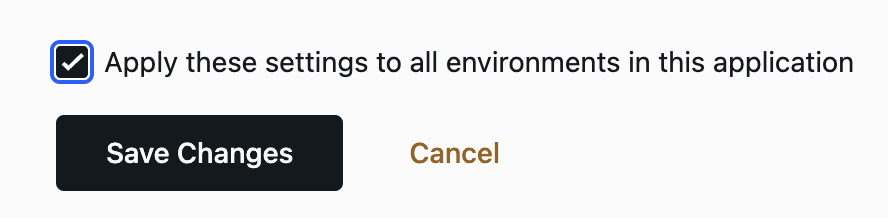
When configuring settings for a module in the WordPress Security Controls panel of a production environment, an option can be selected to replicate the settings across all of the application’s environments.
- Select the option labeled “Apply these settings to all environments in this application“.
- Select the button labeled “Save Changes” to update the settings across all environments.
Last updated: November 20, 2025