This quick reference guide lists all the settings related to the Moderation Add-On, and includes a short description of their purpose.
Site-wide settings are available within the Gravity Forms Settings page, where you should find a Moderation tab within the left-hand list.
Form-level settings will be enabled once the site-wide settings are activated, and allow you to make individual form setting decisions for the Moderation Add-On.
Add-On Settings
Setting
Description
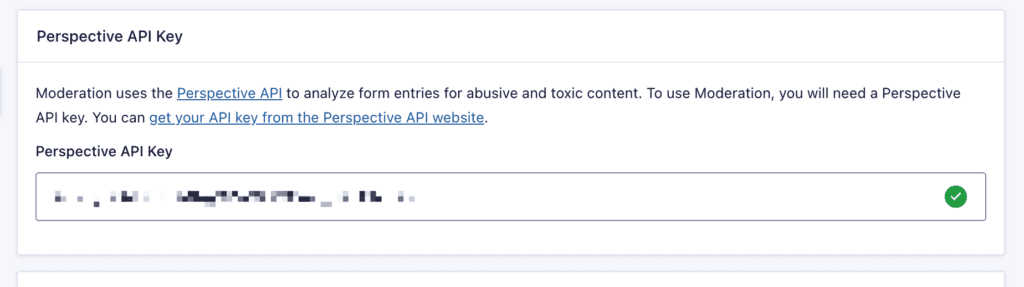
Perspective API Key
To use Moderation, you will need a Perspective API key. A green checkmark indicates a valid API key.
Setting
Description
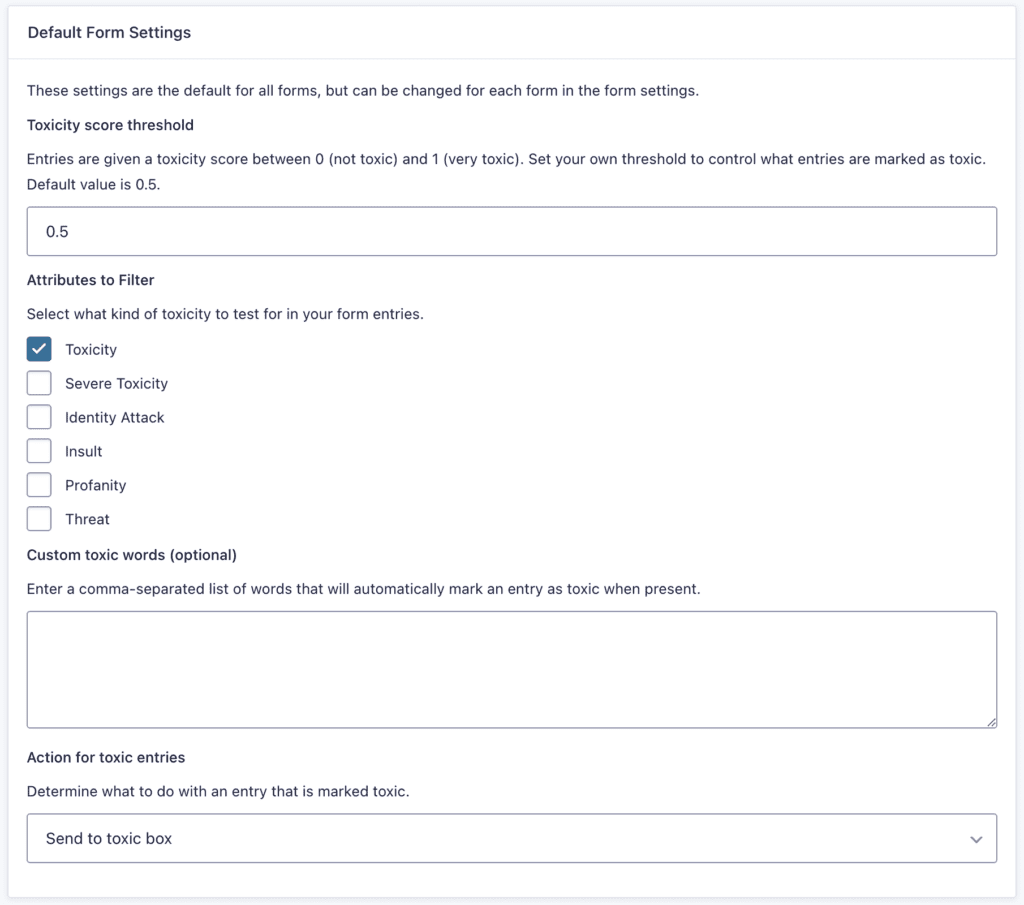
Toxicity Score Threshold
Set your own score threshold between 0 (not toxic) and 1 (very toxic) to control what entries are marked as toxic. The default value is 0.5. A leading 0 is required
Attributes to Filter
Select what kind of content you’d like to block in your form entries. Note: Not all languages support all Filter types. Results are displayed dynamically based on the language selected.
Custom Toxic Words
Optional. Enter a comma-separated list of words that will automatically mark an entry as toxic when present.
Action for Toxic Entries
Select what you’d like to happen when entries are marked toxic.
Setting
Description
Send to toxic box
This will create a new category on the Entries list page, where filtered entries will be sent (screenshot A).
Delete the entry
This will result in the entry being quietly discarded. There will be no record of this entry.
Screenshots
Screenshot A— Entry Boxes
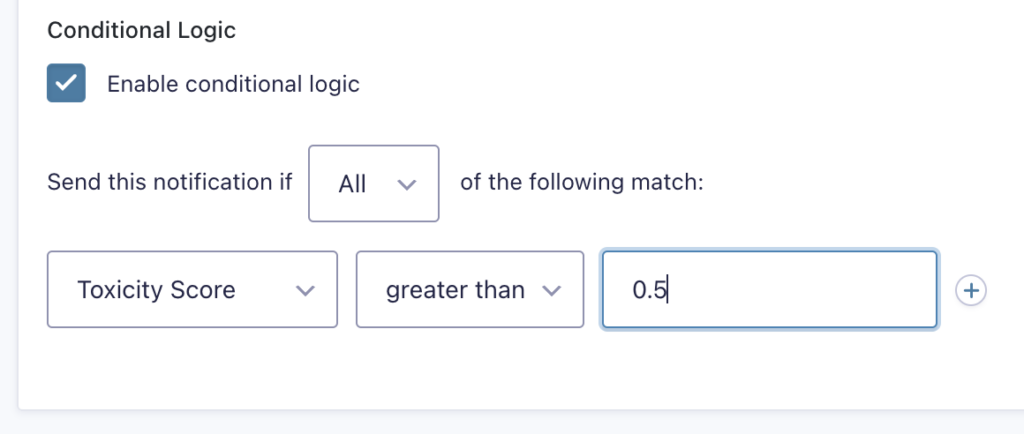
Using Toxicity Score Threshold in Conditional Logic
When setting up a conditional logic rule based on the Toxicity Score Threshold, ensure that a leading zero is included. For example, in the scenario below, conditional logic is applied to trigger a Notification when the Toxicity Score Threshold is greater than 0.5.