This feature is part of Gravity Forms 2.6 and newer. See our release post for more information.
Summary
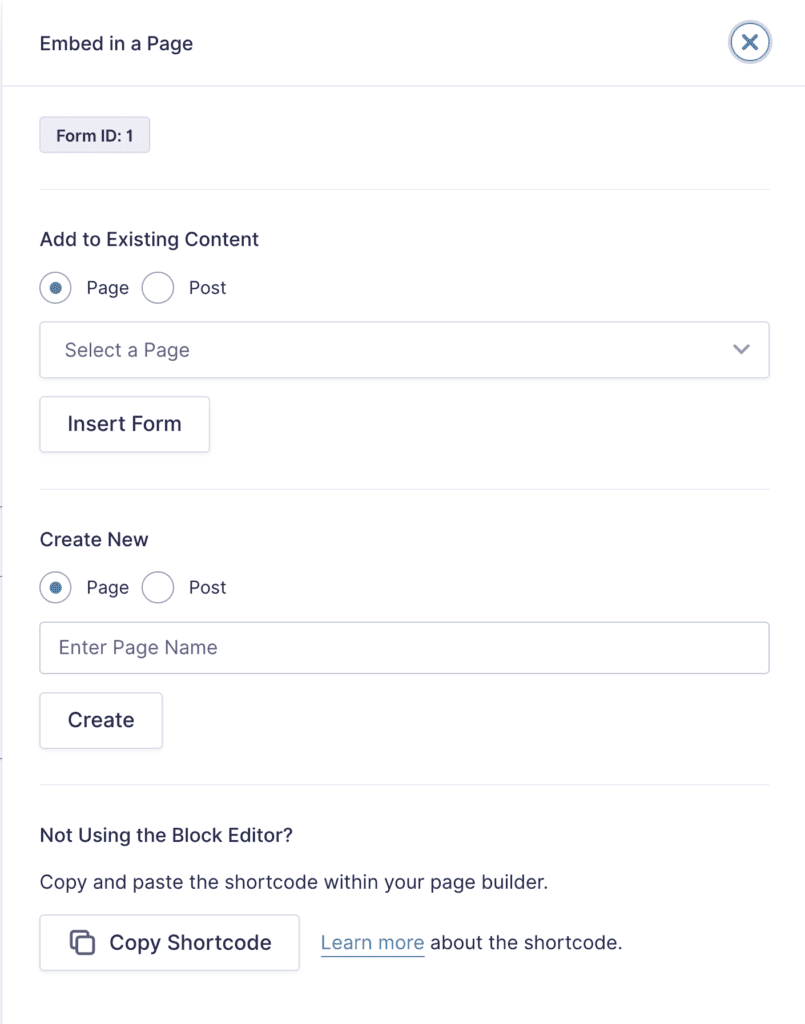
The Embed Form flyout, released with Gravity Forms 2.6, provides a simple way to add your form to a page or post from directly within the Form Editor. It utilizes the WordPress Block Editor to allow you to include it in an existing or new post or page. You can also use this new interface to copy the form shortcode and then insert your form using existing shortcode methods.
Accessing the Embed Form flyout
The top bar of the Form Editor has a new button “Embed” which loads the Embed Form flyout
Clicking the Embed button will load the new Embed Form flyout
Embed Form Settings
Setting
Description
Form ID
Current Form ID
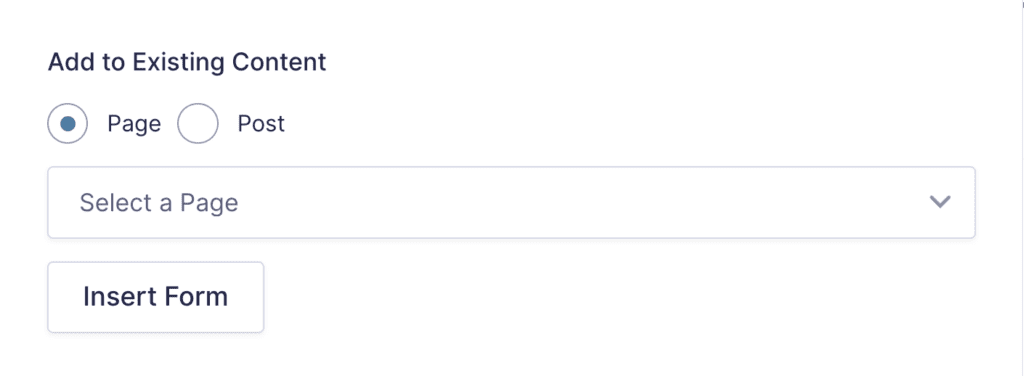
Add to Existing Content
Select Page or Post to load the list of Posts or Pages on your website for selection.
Select a Page Drop Down
Select from a list of pages or posts on your website.
Insert Form Button
Click the button to Insert the current form into the Page or Post selected and load that page in the block editor.
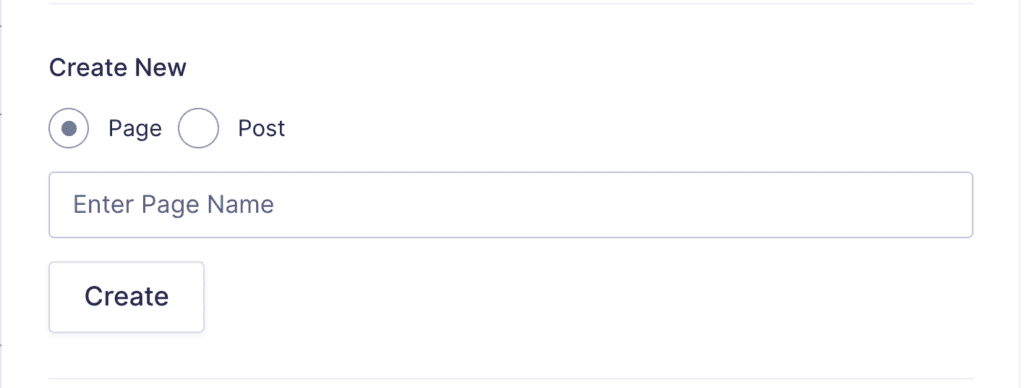
Create New
Select Page or Post to create a new page or post for your form.
Enter a Page Name
Enter the name of the page or post to be created.
Create Button
Click the button to Create the new page or post and load the new page in the block editor.
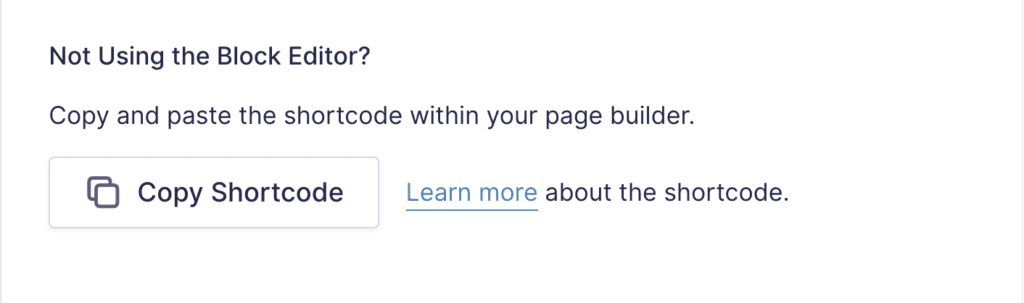
Copy Shortcode Button
Clicking this button will copy the shortcode for the current form into your clipboard for pasting into your Page Builder.
How to embed a Form in a New page or post
Select Embed from the top bar. The Embed Form flyout will load.
Select Page (or Post) under Create New.
Enter the Page Name (or Post Name) in the input field.
Click the Create button.
New page will be created and your form will be embedded.
How to Copy a Shortcode with the Embed Form flyout
Select Embed from the top bar of the form editor. The Embed Form flyout will load.
Under “Not Using the Block Editor”, click the Copy Shortcode button.
The shortcode for your form will copied to the clipboard so you can paste it into your page builder.
Notes
You can also use the Embed Form flyout to create new custom post types or insert into existing custom post types. These can be activated using a filter (yet to be published).