


| CARVIEW |
In Microsoft Teams, the following link gives a tutorial for using Microsoft Teams whiteboard.
For Google Meet, using a whiteboard (Jamboard in the Google suite) is not done by utilizing an option within the Google Meet screen share interface; it is done by using screen share, opening a tab in the Chrome browser, and selecting Jamboard from the list of Google apps. The following link is a Google for Education video tutorial for using Google Jamboard.
]]>- One simple activity that can be done is by using screen share and breakout rooms. In this activity, which I have done in the classroom, students are paired up and given a sheet with word puzzle problems on it. They are to work together to solve as many of the five problems as they can, and those who correctly solve a problem get a prize. This works well to get students collaborating on figuring out the correct strategy that would result in solving the problem. In my class, as soon as a pair thinks they know the answer to any of the problems, they put up their hands either I can read their solution, or they can whisper their explanation to me. I can instantly say, “correct” or “keep trying” and the respond accordingly. This activity creates a great buzz of conversation as each pair works on the solutions.
- To recreate the activity in the synchronous video setting, the teacher may divide the group into pairs using the breakout rooms, and then either use the share screen option to show all the word puzzles, or if necessary, to share a link in the chat that students may click on to get their own copy of the activity.
Another way to cognitively engage students in the synchronous video setting is to use the whiteboard option. This feature allows students to collaborate on a shared space. It has more flexibility than a shared document, and can be used as a way to cognitively engage students.
]]>In the classroom, a teacher may walk around, listening to pairs or groups talk. This mostly unobtrusive listening allows a teacher to quickly check how much the students are on task. How does that happen in breakout rooms? In breakout rooms, a teacher may join any room to listen in on the conversation. This cannot be done unobtrusively, as students instantly are aware that the teacher has joined the room. Typically there may be a few seconds of silence before conversation continues, but mostly, students realize what has happened and continue on.
One advantage that breakout rooms have over in-class pair or group work is in the assigning of students to the pairs or groups. In Zoom, as an example, a teacher may click on a button to automatically randomly assign students to a room. This saves a lot of time over trying to do that manually in the classroom.
The following two videos show how to navigate breakout rooms in Zoom, as well as explain some of the benefits of using breakout rooms.
Part 1
Part 2
To use breakout rooms in Microsoft Teams, the following link is a Microsoft Education Breakout Rooms video that explains how this works. As mentioned before, both Microsoft Teams and Google Meet need a specific subscription account to use their respective breakout room options.
To use breakout rooms in Google Meet, the Google Meet Help page gives written instructions and specifies what version of the Google suite you need to access it. Check this link for the Google Meet breakout room explanation.
]]>How does emotional engagement look in the synchronous video environment? The difficulty in quantifying a “feeling” is that as an observer, a teacher cannot know what is being felt unless either the student verbalizes it, or the student shows it through behaviour. Generally, a teacher infers based on observation, which as many know, can be a misread of the student’s internal emotional state.
Before listing strategies that may contribute to increased emotional engagement, it is worth noting what aids and what detracts from assessing emotional engagement in the synchronous video environment. Since most interpretations of internal thoughts are based on what is seen or heard, those sensory modes almost entirely dictate how a teacher may “know” how a student feels.
- In the synchronous video environment, when students have video and microphone enabled, a teacher may be able to better infer a student’s emotional engagement by seeing or hearing them.
- In contrast, if a student has the video off and the microphone muted, a teacher is effectively cut off from any way to “know” a student’s emotional engagement. A student with video disabled may still be watching and listening but the teacher has no observable way to know.
- In the classroom, the equivalent of students with disabled video may be if students have their heads down on their desks. There still may be emotional engagement (a student says, “I’m listening”), even though outwardly the body language is disengagement. Even so, a teacher does have a visual reference that the student cannot control like disabling video.
Teachers cannot make students care about what they are doing and there may be many factors that affect students’ emotional engagement in an activity, a class, or a course. All teachers understand that things like:
- student physical and mental condition (sleep, hormones, pain, anxiety)
- external stressors (other courses/deadlines, jobs)
- time of day/ day of the week
- beginning, middle or end of a course
- relationships (parents/family, peers, friends, romantic)
- prior experiences with the subject or teachers
- course subject
- feelings toward the teacher
These and other factors will greatly contribute to, or take away from, a student’s emotional engagement at any particular time. It is important to know that sometimes, no matter what a teacher does, there will not always be total emotional engagement from all students all the time, or even for a single activity. That does not mean that a teacher should not aim for it, but that within the constraints of the education system as it is and humans being who they are, complete and universal emotional engagement all the time is extremely unlikely.
Having said that, what can be done in the synchronous video environment? Try these:
- use of breakout rooms – this feature allows a teacher to separate students into pairs or groups just as would happen in the classroom. This encourages emotional engagement by allowing students to chat in a more private manner, versus making comments that the entire class listens to. In Zoom, the teacher/ administrator has the ability to either self-determine who goes in which rooms, or have the program randomly assign students to rooms. This randomizer saves a lot of time that would be spent by the teacher picking and assigning students one-at-a-time.
- quick check-in – at the beginning of the whole-group meeting, if the group is not larger than a regular class size (24-30), and with students prepared beforehand, have students give a one or two-word description of themselves at the moment. This can not only give power and voice to the students, but may allow them to see how many others are feeling the same way. This is also a way to build community by finding out something about each other.
You may choose from many options, depending on the application: in Zoom, with the options built-in, there are not a lot of choices; in Google Meet, you need to have added a third-party application (such as Snap Camera, which I demonstrate here), which gives you many options.
Filters are purely for entertainment, although you may incorporate them as part of an activity that calls for different characters, as an example. The use of filters speaks strongly to emotional engagement, as students may care more if they can be entertained by the filters.
In Zoom: the following video demonstrates how this can be done in Zoom, which has a built-in filters feature.
In Google Meet: this video demonstrates how this can be done in Google Meet, which does not have a built-in filters feature.
]]>Having said that, here is my take:
Overall
Full disclosure – I am most familiar with Zoom, as I have been actively using it the longest. My school district signed on with Zoom in the early days of the pandemic lockdown, and we continue to use it in 2021 for staff meetings and parent-teacher interviews. I have used Google Meet, but only in limited circumstances. My school district does not have a Google Meet Education Fundamentals or Education Plus account, which means that some options are not available to me (see the chart below). I have not used Microsoft Teams, not because I don’t want to, but because I do not have access to it through my school district administration. In contrast with Google Meet, which I am able to use, albeit the basic version, I cannot access Microsoft Teams video at all, without an educational subscription. Anything I write about regarding Teams is gleaned from online articles and Youtube videos and not from personal experience.
With all that in mind, I would give Zoom the overall advantage over Meet and Teams. Why? As you will see in the chart I have constructed below, Zoom has more built-in options, and the options are easy to find and navigate through. Of course, I am most directly comparing it to Google Meet, since I have the ability to test its capabilities, whereas Microsoft Teams remains (for me) largely untested. I have signed up for a Teams account, but my access is very limited. Microsoft suggests that if you want to use video calls for friends and family, that you use Skype, which is part of the Microsoft family.
Details
As mentioned above, Zoom has many features built into it, including its free version. Google Meet, and especially Microsoft Teams, requires an upgrade – and this usually means paid version – to access all of the same features as Zoom. To be clear, all three platforms have the same capabilities, but there are extra costs involved in having them all available for Google Meet and Microsoft Teams. The limitations that Zoom has for its free version are a session time limit of 40 minutes and it is an individual license. See the chart below to get a side-by-side comparison.
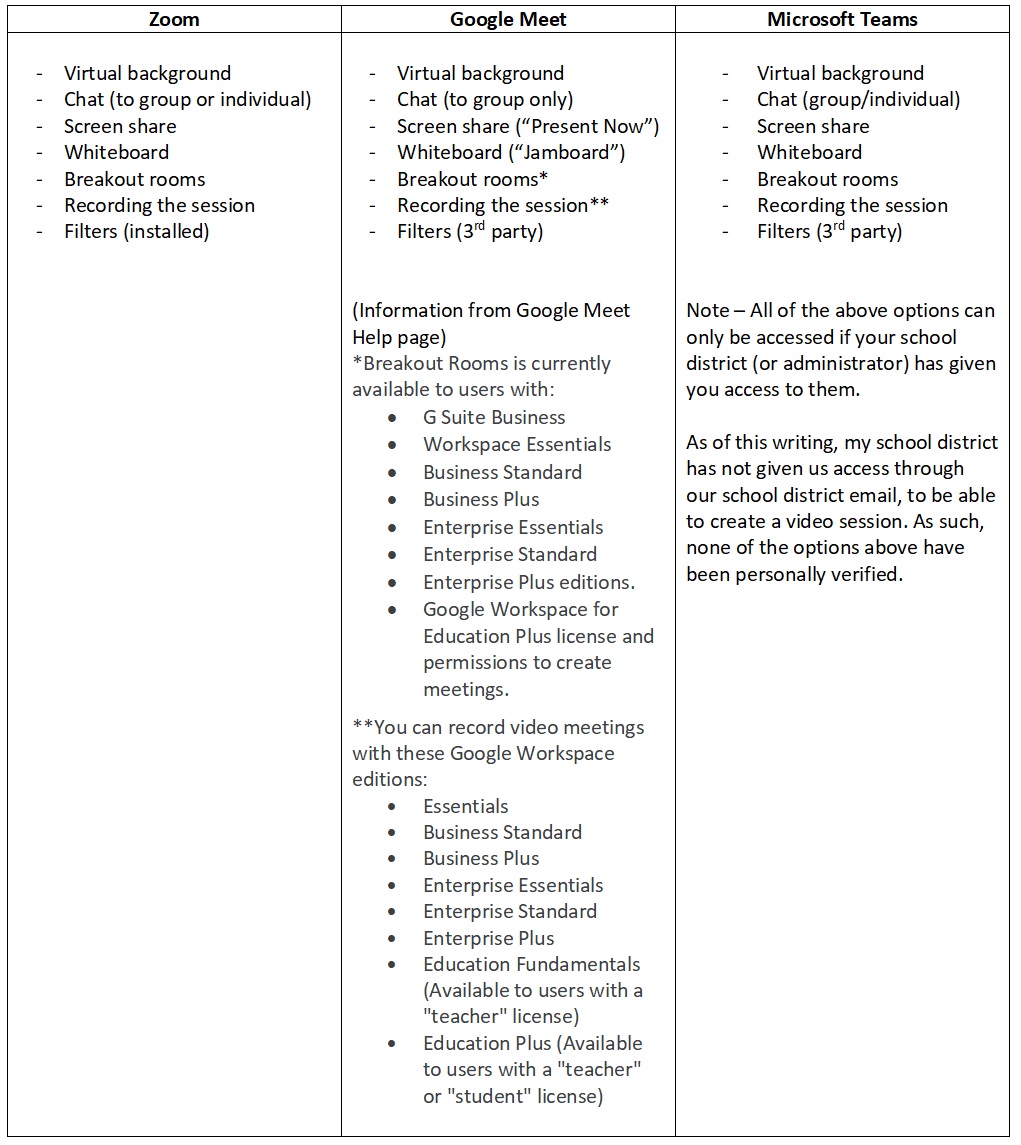
To see some of the Google Meet options that would be compared to Zoom, see the video below.

Sevilla, G. (2020, April 15). Zoom vs. Microsoft Teams vs. Google Meet: Which Top Videoconferencing App Is Best?. Pcmag.com. https://www.pcmag.com/news/zoom-vs-microsoft-teams-vs-google-meet-a-videoconferencing-face-off. Screenshot by Dale Sakiyama
PC Magazine article – April 15, 2020 in pdf form
]]>The use of virtual backgrounds is one way to address the issue of privacy that may prevent students from showing video. A teacher may also look at ways to make the video experience more interesting. The following video demonstrates using props.
]]>Zoom backgrounds
Google Meet backgrounds
